![Firefly-logo-high-res.png]](https://fireflyreservations.com/hs-fs/hubfs/Firefly-logo-high-res.png?height=50&name=Firefly-logo-high-res.png)
Quick Links
Edit the Initial Charge
Before you adjust the recurring charge, you will want to adjust the initial or current monthly charge that has already been posted to the guest's account.
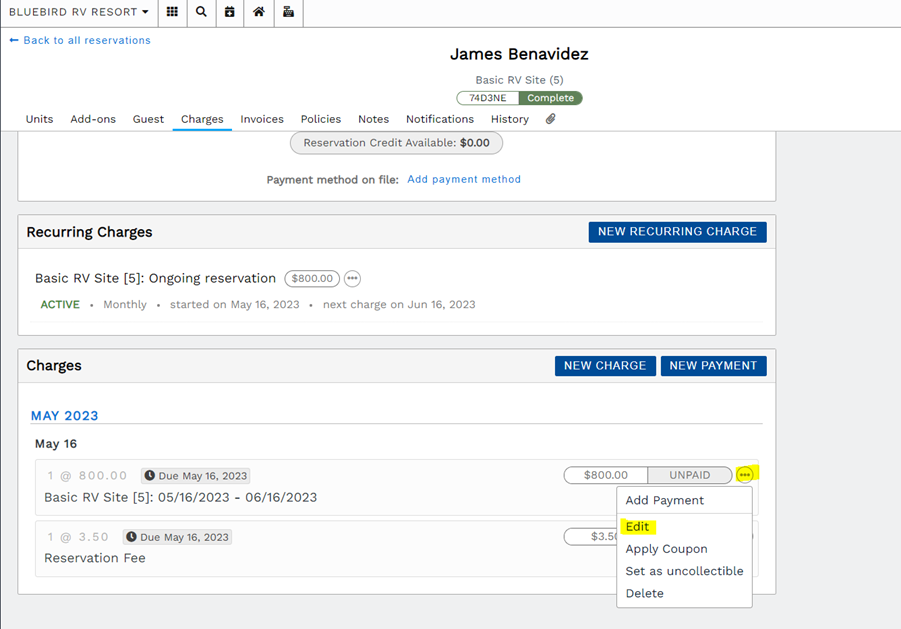
1. Click the 3 dots for the options menu on the initial monthly charge, select edit.
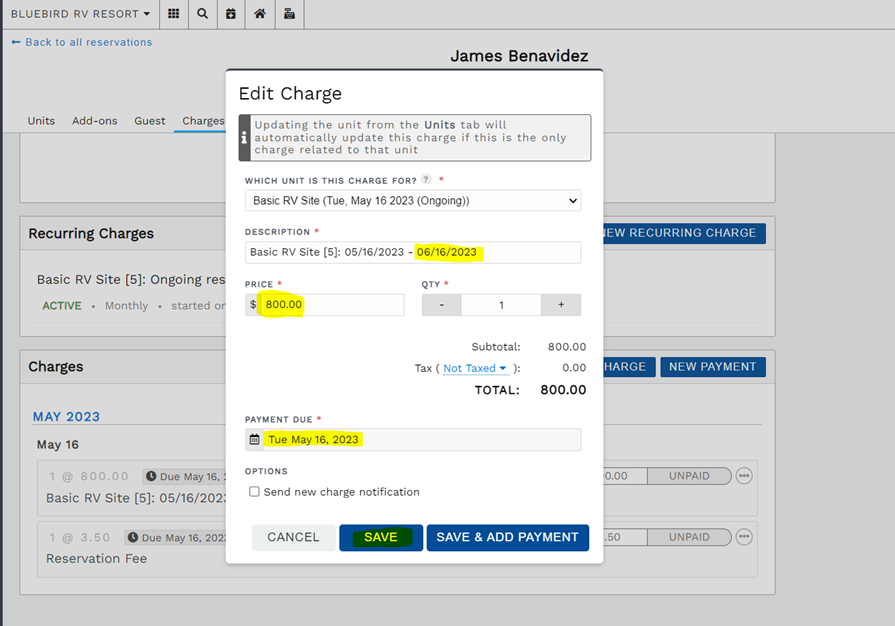
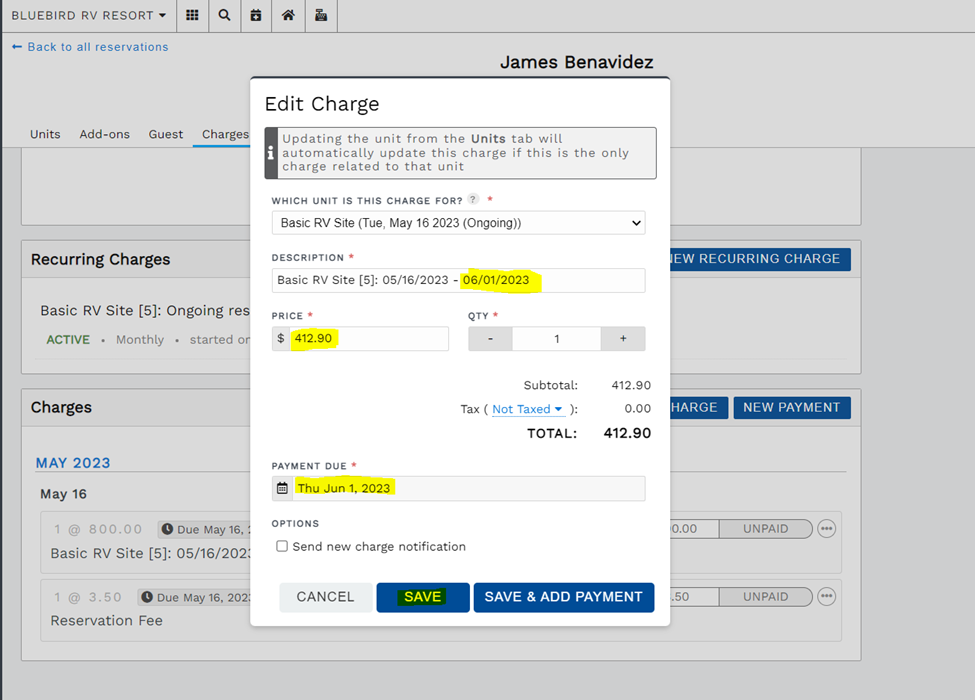
2. Adjust the charge description. In this example, since we want the guest's recurring charges to renew on the 1st of the month, the description will be adjusted from "5/16/23 - 6/16/23" to "5/16/23 - 6/01/23" as shown below.
3. Calculate the pro-rated monthly amount for the initial charge, enter the amount in the price section. In this example we are pro-rating the monthly rate to bill the guest from 5/16/23 - 6/01/23.
4. If needed, adjust the payment due date.
5. Save Changes.
Edit the Recurring Charge
Now that the initial charge has been adjusted to the preferred date, you can adjust the recurring charge's setup.
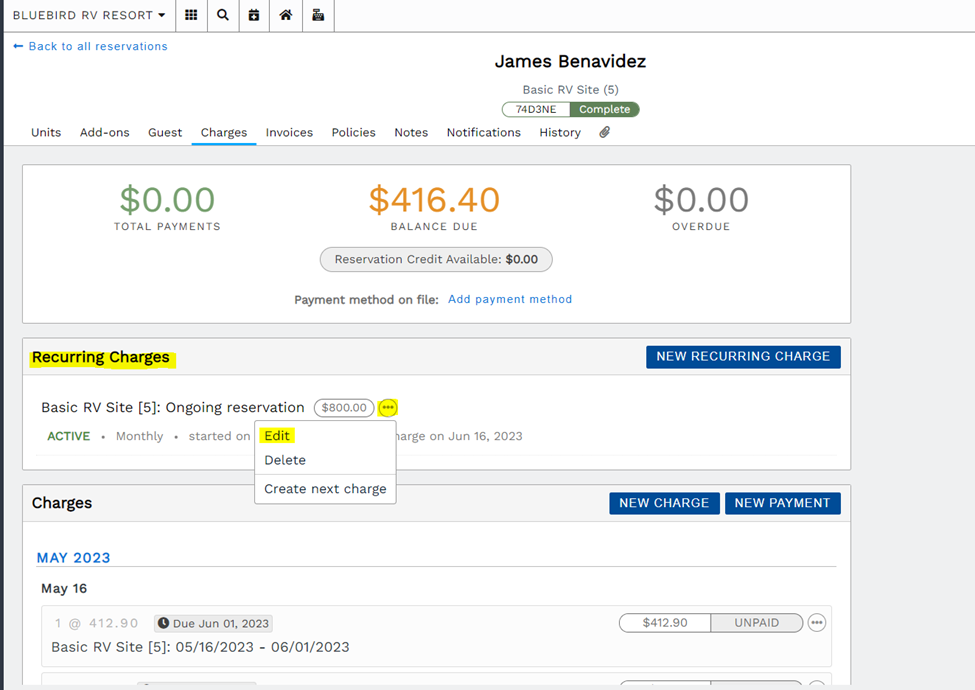
1. On the guest's recurring charge, click the circle with 3 dots then select Edit.
2. The Edit Recurring Charge dialog opens to show the existing settings. You will change the Create First Charge On setting, highlighted here: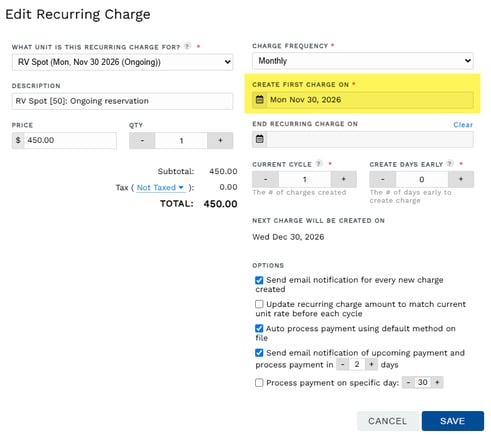
3. Adjust the Create First Charge On until the Next Charge Will Be Created On shows the desired next charge date.
Be sure to click Save.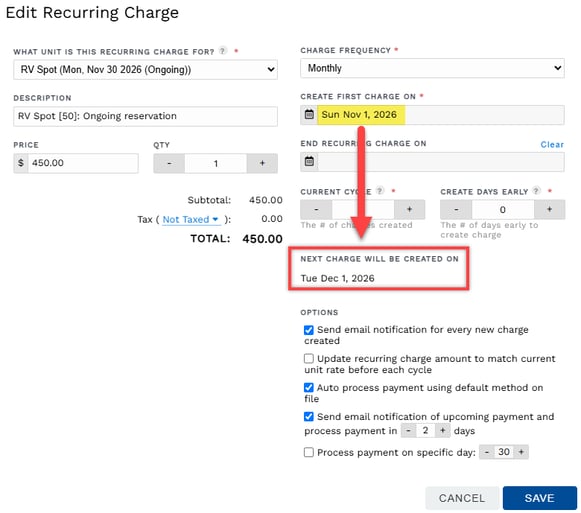
All recurring charges going forward will now be posted on that preferred date.
TIP: For more information about recurring charges, see: Create and Manage a Recurring Charge