![Firefly-logo-high-res.png]](https://fireflyreservations.com/hs-fs/hubfs/Firefly-logo-high-res.png?height=50&name=Firefly-logo-high-res.png)
Last Updated: October 27, 2026
Link to Feature: https://app.fireflyreservations.com/Integrations (or click here)
Quick Links
Things to know before connecting
Setup Steps:
- Enable the Add-on
- Sync Available Units
- Set up your Booking.com Rates
- Set Min/Max Night Rules
- View Other Settings and Date Ranges in the Inventory Tab
- Create your Channel
- Map your Units
- Activate your Channel
- Pull Future Reservations
View Booking.com Reservations in Firefly
Overview
Integrating your Firefly account with a new or existing Booking.com account provides an additional marketplace to reach outdoor enthusiasts, increasing your park's exposure and booking potential. It allows you to expand your reach to travelers searching for unique outdoor stays on Booking.com, giving them access to real-time availability and accurate booking information for your Firefly properties.
Things to know before connecting
IMPORTANT: To complete the Booking.com integration, the units you will connect must be set up in both Firefly and Booking.com, and must be published for bookings on your Booking.com account.
Unit Types – All units types in Firefly are eligible to link to your Booking.com account.
Check Booking.com Requirements - Booking.com requires its partners to meet and maintain Compliance Requirements for applicable laws and regulations. Before proceeding with our integration, please check to make sure you meet them.
Set up your Booking.com Account - Start the walkthrough to set up your Booking.com account on this Partner Hub page: Set up your Booking.com Account. You should set up your Booking.com account before proceeding.
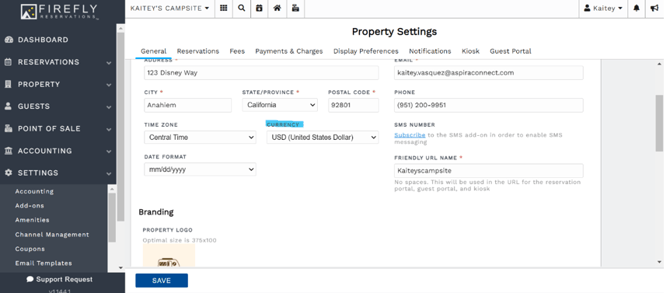
Confirm Currency in Firefly - Your currency needs to be properly configured in Firefly before connecting any units through the OTA Channel Manager. This can be found by navigating to Settings > Property > General tab > Currency.
Pricing – For current pricing on this integration in Firefly, see integration pricing.
Step 1: Enable the add-on
NOTE: You may skip ahead to step 2 if you have previously setup your Firefly account with an Airbnb, Hipcamp, or VRBO integration.
To enable the Firefly OTA Channel Manager add-on, navigate to your Account Manager.
- Click on the user profile's name in the top right corner of any page in Firefly, select ‘Account’.
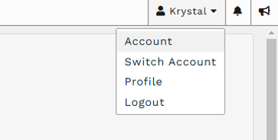
- This is the Account Manager. Select the ‘Addons’ tab.

- Check the box to enable the "Firefly OTA Channel Management" option and select ‘Save’ at the bottom of your screen.
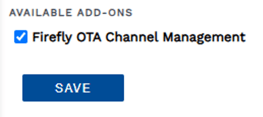
- After this account add-on is enabled and saved you will see the Online Travel Agencies tab on your Integrations settings page (formerly, Channel Manager).
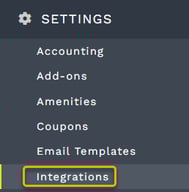
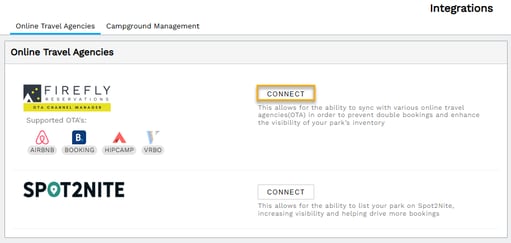
On the main menu, click the Settings dropdown > Integrations
Step 2: Sync available units
- From Firefly's main menu, go to the Settings dropdown > Integrations (formerly, Channel Manager)
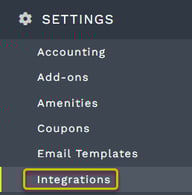
- On the Online Travel Agencies tab, select ‘Connect’.
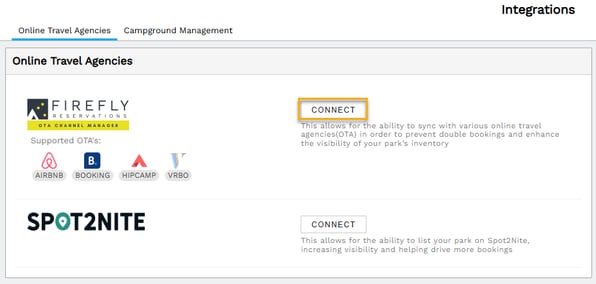
- Click the "Connect Property" button.
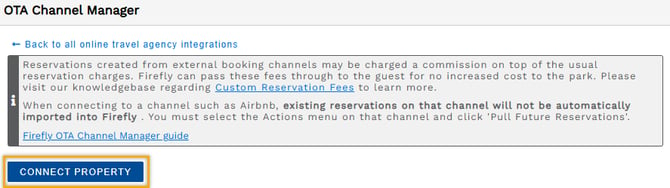
- Select the units you would like to sync from the list of available units then save your selection.
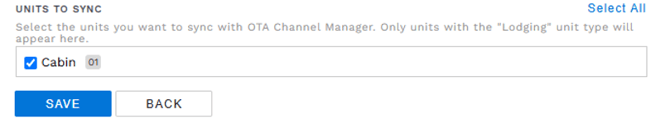
- A temporary display lets you know your unit sync is processing.
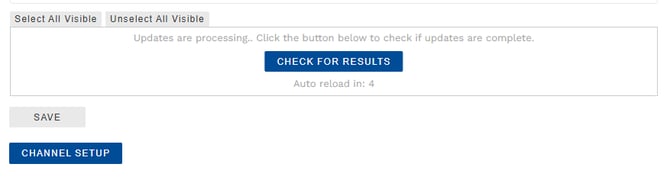
- You will see the full list of available units once again when the unit sync is completed. Select "Channel Setup" to proceed.
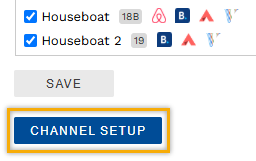
Step 3: Set up your Booking.com Rates
You can set up rates for integrated units once your Booking.com account is linked to your Firefly account in Integration settings (step 2 above).
Booking.com rates for integrated units are managed in the Firefly OTA Channel Manager. You will not manage rates in Booking.com for any unit integrated with Firefly.
Reservations made through Firefly use the rates set in Firefly's Units settings.
IMPORTANT: Booking.com units appear unavailable unless rates are set up in the Firefly OTA Channel Manager, so we recommended setting up rates before moving on to the next steps.
Here is a quick recap to access Firefly's OTA Channel Manager... from the main menu, go to Settings > Integrations > Online Travel Agencies tab > Channel Management button > Channel Setup button > Inventory tab.
To set the rates of our synced units:
-
On the Inventory tab, click the ‘Actions’ dropdown then select ‘Bulk Update’.
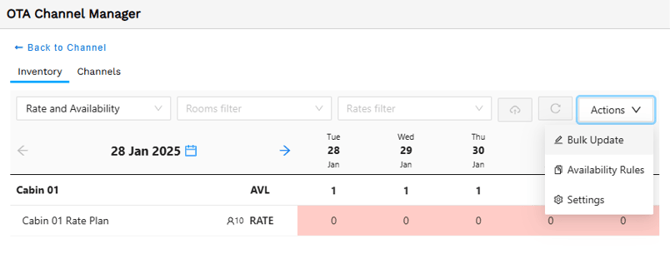
-
Select a date range and the days of the week you are setting rates for. Ensure all days of the week are selected if you want the rates to apply to all days in the date range. If desired, you may choose to apply rates only to specific days of the week using the checkboxes, shown here.
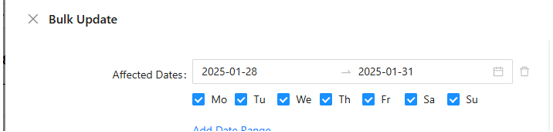
Many parks choose to apply different rates on specific days of the week. One example is setting weekday and weekend rates. In these situations, to adjust rates for Fridays and Saturdays only, you will uncheck Sunday through Thursday and keep Friday and Saturday selected. Then, finish the rate process outlined below. When the process is done for these weekend days, you will you will uncheck Friday and Saturday and select Sunday through Thursday. Repeating the same process below for these weekdays.
-
Select the setting you want to update – in this case, check the ‘Rate’ box and enter the daily rate in the box to the right. Then select the unit to apply the rate below in the ‘affected rooms’ section.
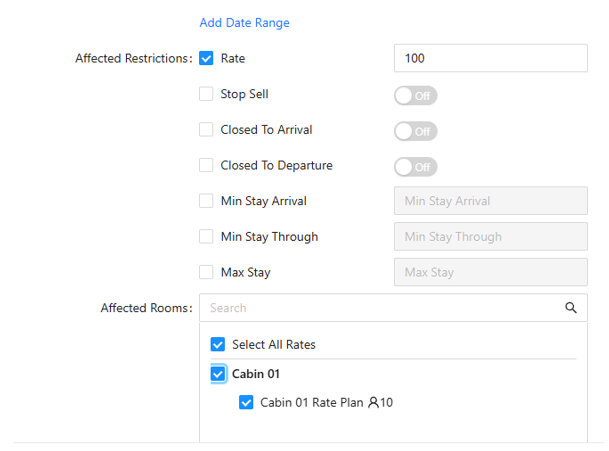
- When you are done, click the ‘Save’ button at the bottom of the page.

-
You will see your rates reflected under the dates that have updated.
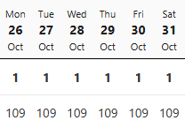
TIP: To ensure you do not miss any dates, we suggest completing rates for a larger time frame then adding your special rates as needed. For example, enter rates for a year or your season before entering specific date ranges like special events, weekends, or holidays.
-
After establishing Firefly's connection to your Booking.com account, you will have limited access to pricing and availability settings from the Booking.com side. However, additional fees for Housekeeping, pet fees, etc. are managed in your Booking.com account.
Step 4: Set Min / Max Night Rules
You have two options to determine how your minimum night rules will be applied.
- Min Stay Arrival: This setting requires the minimum stay to be based on the guest’s check-in date only.
- Min Stay Through: This setting requires the guest to meet the minimum stay for any date within the entire booking period, regardless of their check-in date.
Here’s how each setting would apply if you had a 1-night minimum Sunday through Friday and 3-night minimum Saturday:
-
Min Stay Arrival: Saturday's 3-night minimum only applies if the guest arrives on a Saturday. Guests arriving any other day of the week may stay a single night.
-
Min Stay Through: Stays including a Saturday must be at least 3 nights. For example, a guest booking from Thursday to Saturday must book a minimum of 3 nights.
To set your minimum and maximum night rules:
-
Go to Settings > Integrations > Manage.
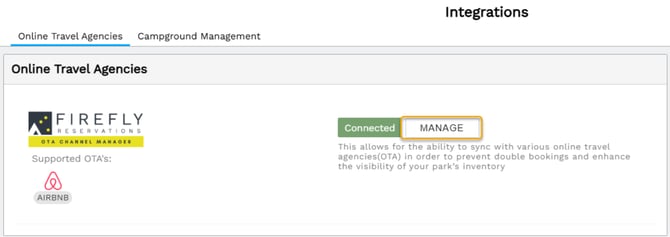
-
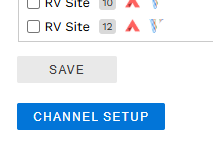
Click the "Channel Setup" button found below the list of units.
-
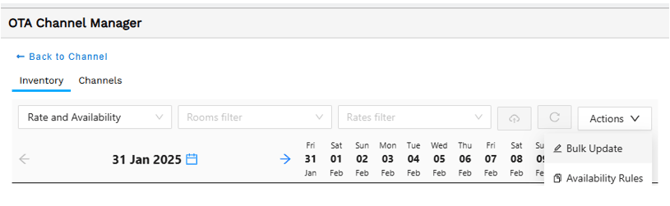
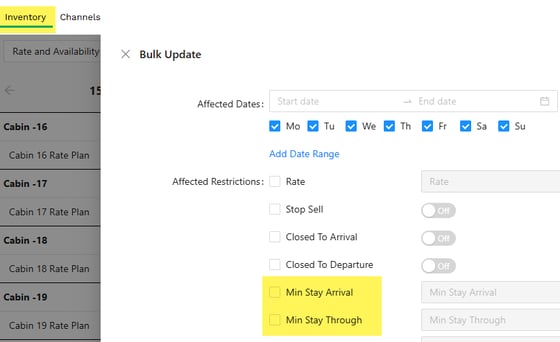
On the Inventory tab, click the "Actions" dropdown then select "Bulk Update".
-
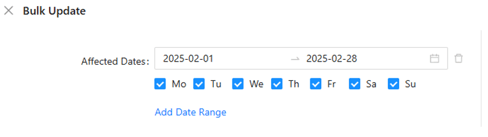
Select the Affected Dates, which are the date range and days of the week the minimum requirements will apply to.
-
 Select a minimum stay restrictions type, ‘Min Stay Arrival’ or ‘Min Stay Through’, and enter your nightly minimum in the corresponding box.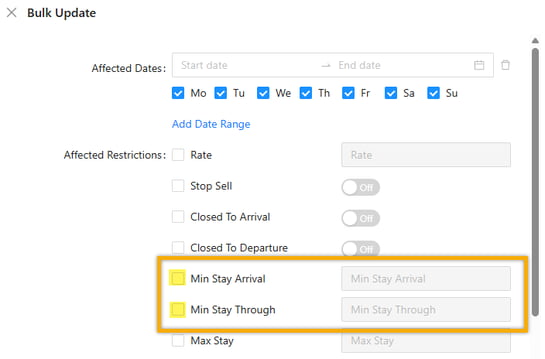
-
Select the units your minimum applies to. If it applies to all units, check ‘Select All Rates’ and click ‘Save’.
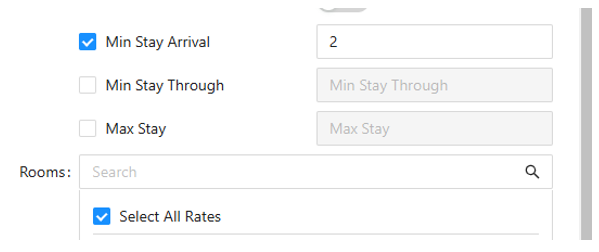
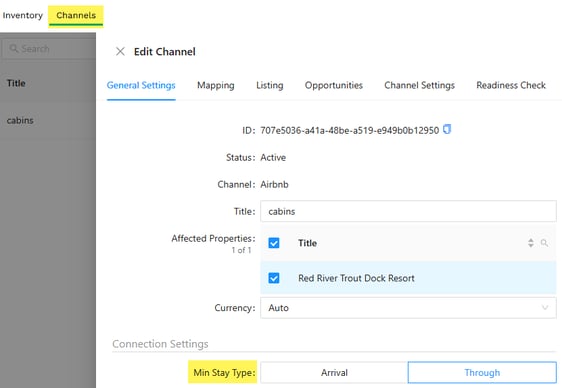
IMPORTANT: The option you choose to apply minimum nightly rules in the bulk update MUST match the connection setting in your channel's setup.
Be sure you choose the same restriction type when you create your channel below. If your channel is already created, ensure the settings for inventory and channel match.
Step 5: View Other Settings and Date Ranges in the Inventory Tab
To view the current settings of your Booking.com integration in Firefly, go to the main menu > Settings > Integrations > Management button > Channel Setup button > Inventory tab.
You can display multiple settings on the Inventory tab using the Rate and Availability dropdown.
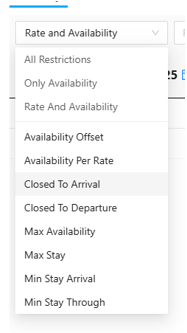 Click the dropdown and select a setting you wish to include in the inventory view. You will then see a new row appear between Availability (AVL) and Rates (Rates). Setting titles appear as abbreviations. In the screenshots below we see Min Stay Through displaying as MST.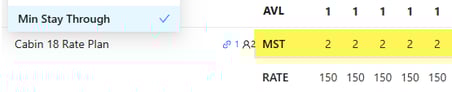
To view a different date range, select the arrow on either side of the date to scroll or click on the date to select a new date range from a calendar.

Step 6: Create your Channel
Navigate to the Channels tab and select Create.
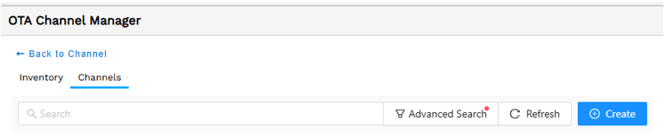
Select "Booking.com" from the Channel dropdown and create a title for your channel. We recommend your park name followed by Booking.com.
If you Firefly account includes multiple properties, you will also click the Property dropdown to select the desired property.
We recommend you leave Currency set to Auto.
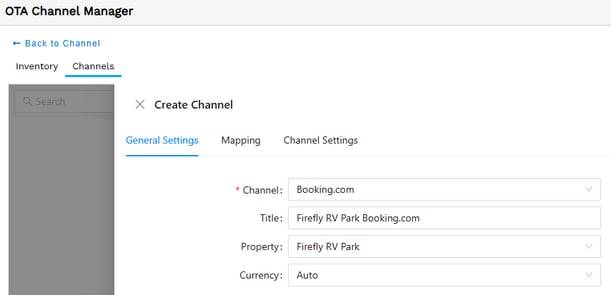
NOTE: The channel name is only visible to you in this Channel Manager. It is not customer-facing.
In the Hotel ID field, enter your Booking.com login credentials.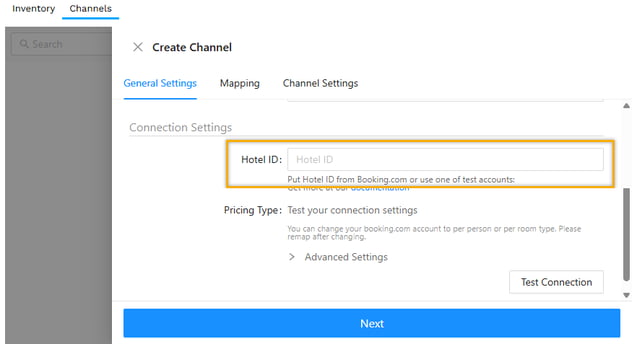
Click "Test Connection" to confirm an authorization from Booking.com
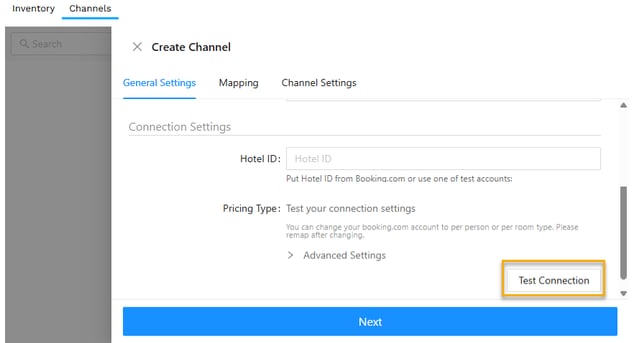
With a successful connection confirmed, click the "Next" button at the bottom of the page.
You will then see your channel created under the Channel tab.
The status will show as disabled until you are ready to activate your connection (We will do this in a later step).
Step 7: Map Your Units
From the actions dropdown select ‘Edit’.
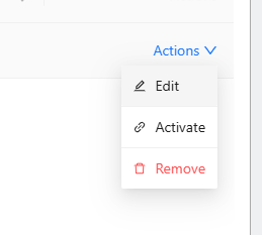
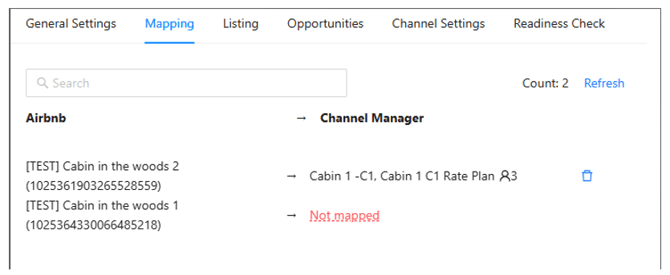
Then, select the "Mapping" tab along the top of the page. Here you will connect each unit in the Channel Manager with its listing in Booking.com. This will be a 1:1 relationship. This view will also show the one or multiple properties you connected to the channel.
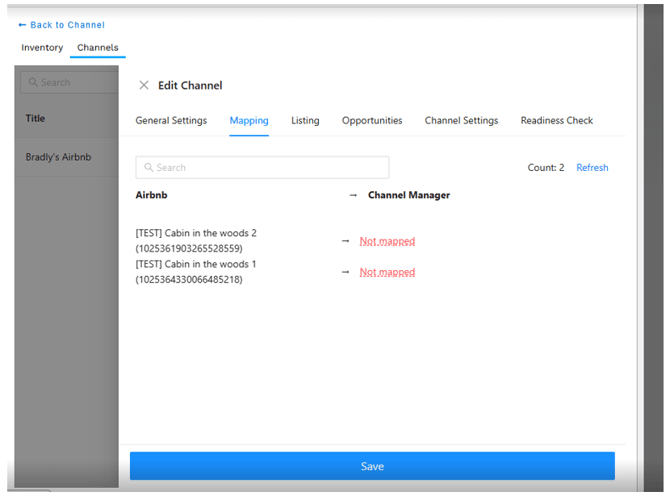
Click on the red ‘Not mapped’ option and connect the unit to the unit in your Firefly Park that matches the listing.
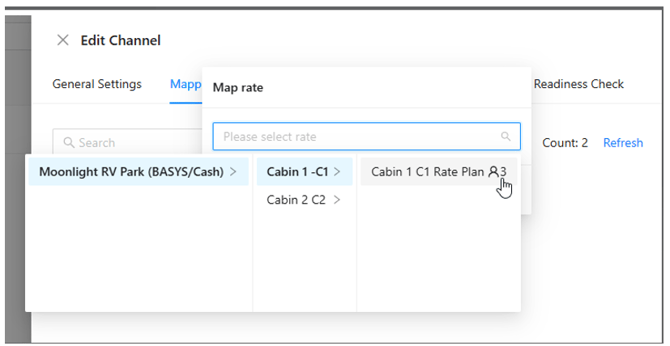
Once this is selected click Save’.
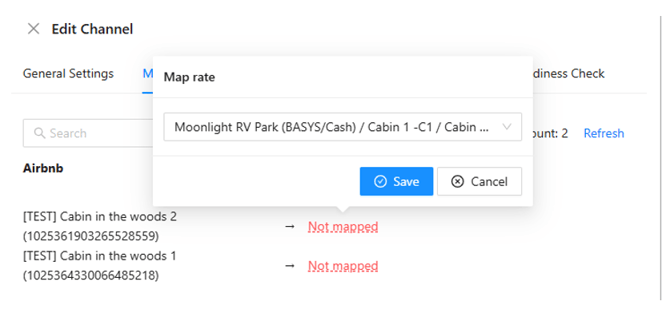
Once this is connected, you can then see the mapped unit in your ‘Mapping’ tab linking the two units.
Step 8: Activate your Channel
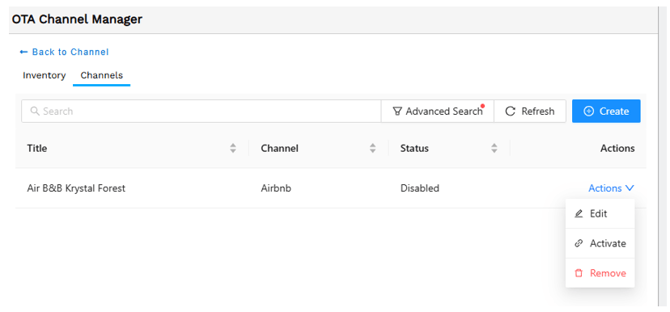
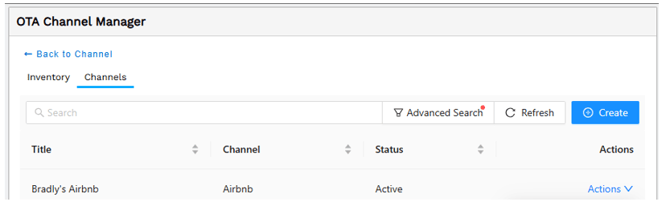
After you have mapped your units and are ready to activate your connection, go to the Channels tab in your Channel Manager (Settings > Integrations > Channel Setup > Channels tab).
Click the Actions dropdown on the right of the Booking.com line, then select ‘Activate’.
Click "OK" to confirm your activation choice.
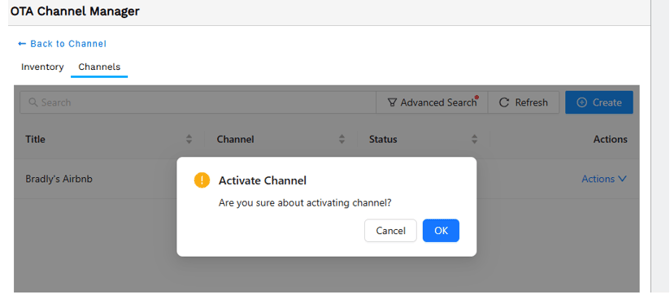
You will then see the channel status has been updated to ‘Active’.
Step 9: Pull Future Reservations
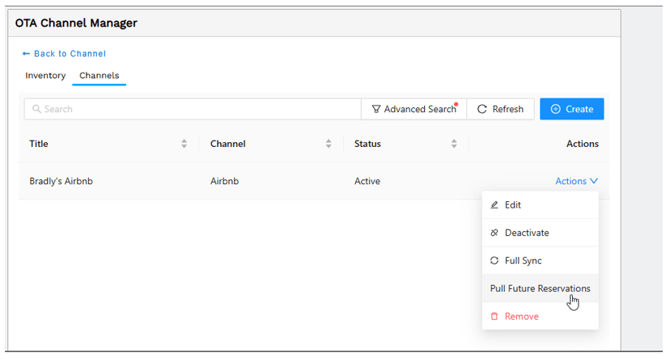
After activating your channel, you will also need to pull future reservations to sync both platforms to show existing reservations.
Click the ‘Actions’ dropdown and select ‘Pull Future Reservations’.
Note: Once the initial sync is completed, future reservations pulled in from external booking sources are subject to Firefly’s standard reservation fees, just like reservations made directly through Firefly.
View and Manage Booking.com Reservations in Firefly
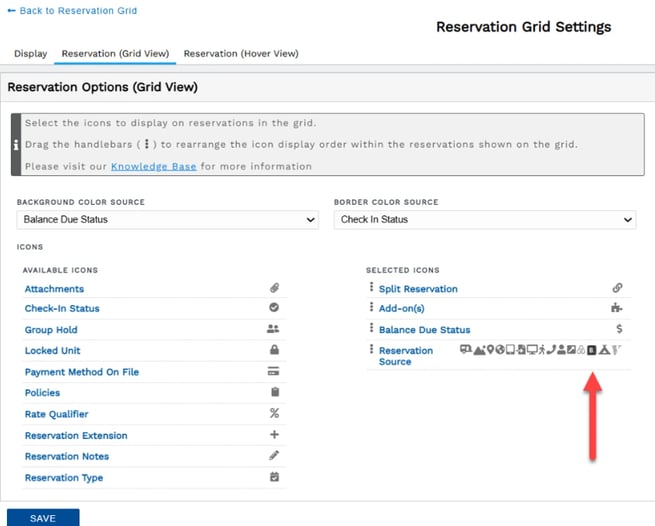
Your grid settings allow you to show the Booking.com logo on imported reservations.
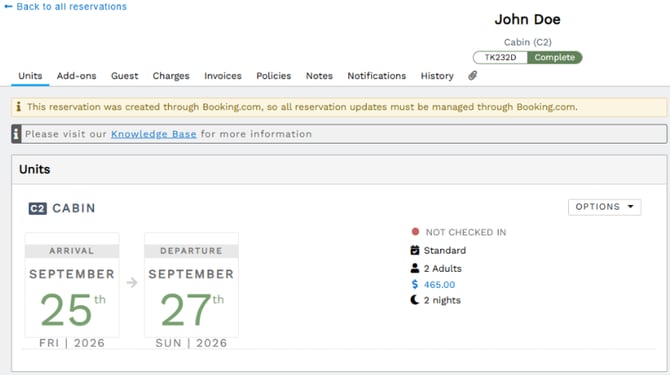
A reservation's details page displays a light gold banner identifying the external booking channel.
A guest portal also clearly identifies the external booking channel in a light gold banner.
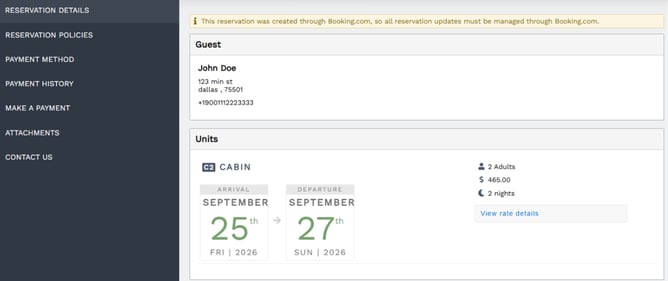
All charges and payments for reservations made through Booking.com must be handled on Booking.com. The unit charges displayed in Firefly for these reservations may not be edited or receive payment in Firefly. You must edit the charges and make payments on Booking.com.
You can keep your Firefly calendar synced with Booking.com while preventing reservations from being made directly through Firefly.
To allow external booking channel reservations only:
-
From Firefly's main menu, go to Settings > Units.
-
Select the unit you want to restrict from Firefly booked reservations.
-
On the unit's General tab, check the box labeled “Allow external booking channel reservations only”.
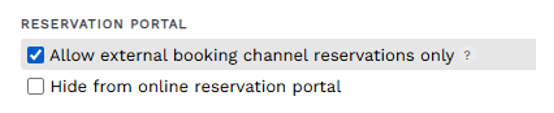
- Click Save to finalize your choice.
This option allows for a specific unit to only be booked via Booking.com or other integrated booking platforms like Airbnb, Hipcamp, or VRBO. If a reservation through Firefly is attempted for a unit with this enabled, an error appears stating the “Unit only allows bookings from external booking channels”.
Conflicts
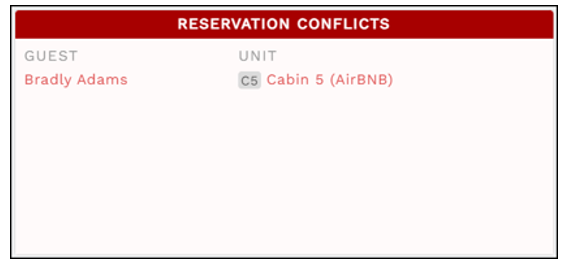
Through Firefly's main dashboard, you're able to view any reservation conflicts. While this is very unlikely, it may occur if a block or reservation is made in Firefly for the same dates reserved in Booking.com at the same time.
The Reservation Conflicts section on Firefly's Dashboard displays the guest name and unit for a conflicted reservation.
You may also identify reservation conflicts on the grid, where they appear to overlap.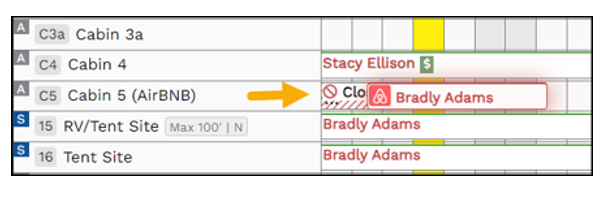
From the dashboard or the grid, you may click on a conflict to be taken to the affected reservation or block. This allows you to confirm essential details and make adjustments as needed. Once necessary changes are made and the conflict is resolved, simply click the 'Conflict has been resolved' button.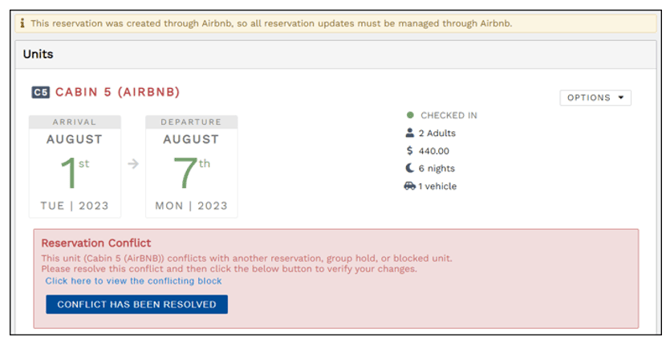
Disconnect Booking.com
You may disconnect individual units or the entire property. Follow the directions below for your desired level of disconnection..
To disconnect a unit:
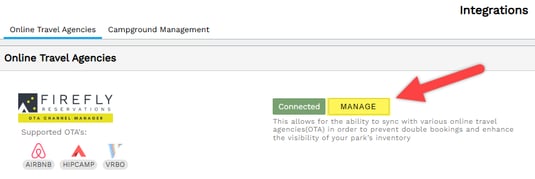
- Go to Settings > Integrations > Online Travel Agencies tab > Select ‘Manage’ next to the connection
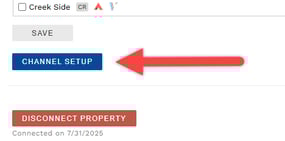
- Scroll to the bottom of the page and select the blue "Channel Setup" button.
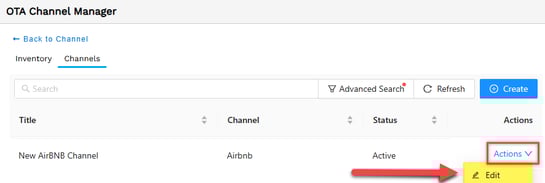
- From the Channels tab, click the Actions dropdown for Booking.com, then select Edit.
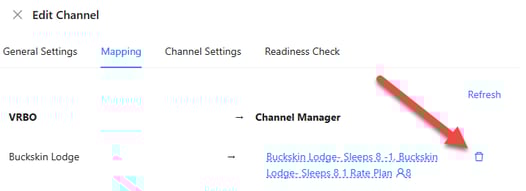
- Go to the Mapping tab. Find the unit you desire to remove, click the "trash can" icon.
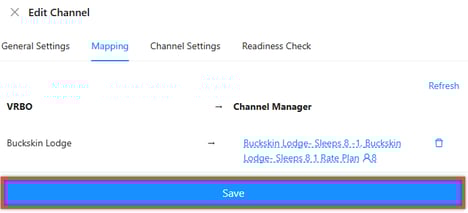
- Click Save to complete the disconnection of the unit from Booking.com.
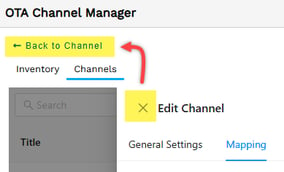
- If desired, you may remove the unit from integrations in Firefly entirely. Click the X in the upper left corner of the pop up to close the Edit Channel menu. Then, select Back to Channel.
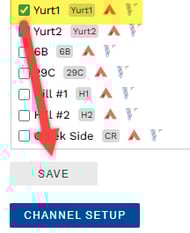
- Uncheck the unit to remove it from integration inventory, then click Save.
To disconnect the property from integrations:
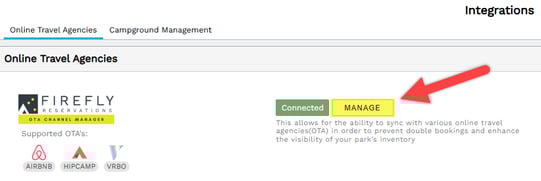
- Go to Settings > Integrations > Online Travel Agencies tab > Select ‘Manage’ next to the connection
-
Scroll to the bottom of the page and select the blue "Channel Setup" button.
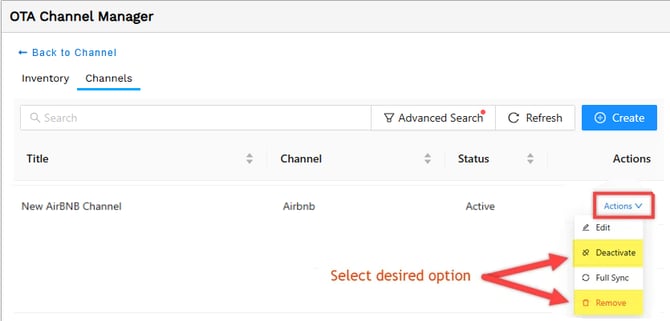
- From the Channels tab, select the Actions dropdown to the right of the Booking.com channel. Select either ‘Deactivate’ or ‘Remove’.
- "Deactivate" pauses integration activity. All setup and settings remain but the active connection is put on hold.
- "Remove" will delete all setup currently in place. If you remove the channel and wish to reestablish the integration, it will have to be rebuilt from scratch.
- Click "Back to Channel"

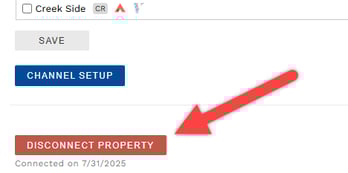
- Click the red "Disconnect Property" button.
Need a walkthrough training to get your Booking.com integration set up in Firefly? Schedule a dedicated call here: Setup Assistance with the Success Team