![Firefly-logo-high-res.png]](https://fireflyreservations.com/hs-fs/hubfs/Firefly-logo-high-res.png?height=50&name=Firefly-logo-high-res.png)
Last Updated: June 5, 2025
Link to Feature: https://app.fireflyreservations.com/Settings#fees (or click here)
Overview
Firefly allows you set set up custom reservation fees so you can charge your guests a fee for any new reservation created. Setting up a reservation fee allows you to generate more revenue or help cover the costs of the software.
Create a New Reservation Fee Rule
CAUTION: If Stripe is your integrated payment processor, we recommend checking your setup in Firefly to ensure you are not double charging for reservation fees. See this information for more details: Enable Custom Reservation Fees.
To create a new reservation fee rule:
- Click Settings
- Click Property
- Select the Fees tab
- Click Add Reservation Fee Rule to create a new rule.

- Next, you will enter a name for your fee, the amount, and if the fee is passed along per unit or per reservation, and if amount is a set dollar amount ($) or a percentage (%) of the reservation total or of the unit costs depending on which has been selected.
- Select a reservation source. If you want the fee to be added to the reservation regardless of the source, select ALL. Otherwise, select the source you want this fee to apply to.
- Click Save when complete.
Adding Multiple Reservation Fee Rules
You can add as many reservation fee rules as desired. Only one fee will be applied per reservation as Firefly evaluates each rule and applies the topmost rule applicable to a reservation. Sort the fees to your desired order by dragging the drag handles (3 stacked dots on the left of a rule's title).
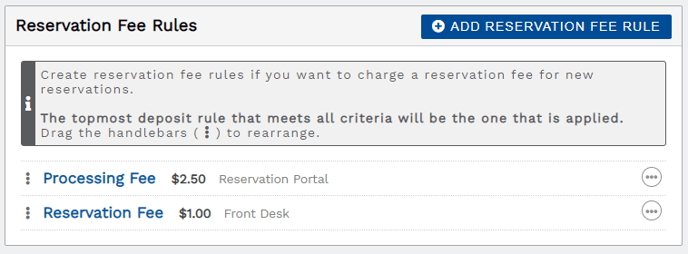 When there are multiple reservation fees, only the topmost applicable rule will be applied.
For example, as we see above, if you make a reservation from the front desk, a reservation fee of $1.00 will be added because the first fee in the list did not apply.
Applying the Reservation Fee Rule
When creating a reservation from the front desk, you will see a reservation fee line item in the reservation summary if a fee applies.
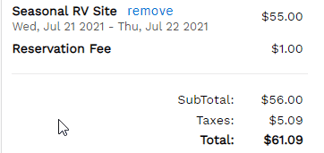
When a guest makes a reservation from the reservation portal, they will also see a reservation fee line item in the summary if a fee applies to their reservation.
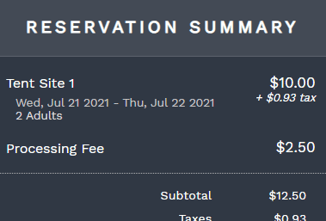 Reservation fee line item in reservation portal summary
After a reservation has been made, the reservation fee will display as a regular charge on the Charges tab of a reservation.
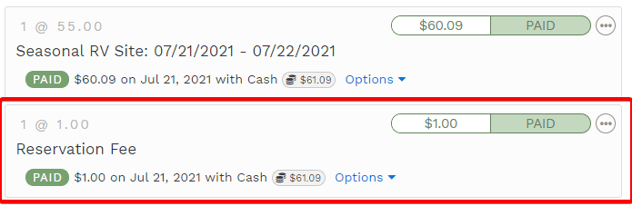
You can manage this charge just like any other charge if you need to refund the payment, customize the charge amount, remove the charge, etc. For reservations longer than one month, the service fee will be charged each month, however it is automatically set up to only charge one time. If you want to pass on the service fee each month, create the reservation fee as a recurring charge or increase monthly rates by $3.50.
🙋♀️ Still need help? Email: support@fireflyreservations.com and one of our technicians can help answer your questions.
💭 We would love to know if this article was helpful in addressing your issue. If you could answer the question below it will notify our team. Thank you!