![Firefly-logo-high-res.png]](https://fireflyreservations.com/hs-fs/hubfs/Firefly-logo-high-res.png?height=50&name=Firefly-logo-high-res.png)
Last Updated: August 18, 2026
Link to Feature: https://app.fireflyreservations.com/Settings#fees (or click here)
Quick Links
Create a New Reservation Fee Rule
Add Multiple Reservation Fee Rules
Apply a Reservation Fee to New Reservations
Remove a Reservation Fee from a Reservation
Overview
Custom reservation fees allow you to charge your guests a dedicated fee for each reservation or unit booked in Firefly. They are a common industry practice that helps offset your office and staffing overhead, including Firefly service fees. Through the passing of service-related costs on to your guests, Firefly effectively pays for itself.
Your custom reservation fees can be set up as a percentage, a flat rate, or a combination of the two. You are able to apply the same fee to all reservations or designate unique fees based on a reservation's source like web, phone, or walk-in. Like all charges within Firefly, you maintain full control to edit pricing or remove reservation fees when exceptions are made. Managing reservation fee rules and the fees applied to reservations is quick and easy.
Create a New Reservation Fee Rule
CAUTION: If Stripe is your integrated payment processor, we recommend checking your setup in Firefly to ensure you are not double charging for reservation fees. See this information for more details: Enable Custom Reservation Fees.
To create a new reservation fee rule:
- Click Settings
- Click Property
- Select the Fees tab
- Click Add Reservation Fee Rule to create a new rule.
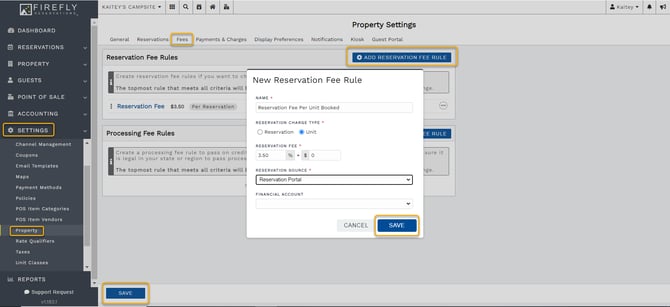
- Next, you will enter a name for your fee, the amount, and if the fee is passed along per unit or per reservation, and if amount is a set dollar amount ($) or a percentage (%) of the reservation total or of the unit costs depending on which has been selected.
- Select a reservation source. If you want the fee to be added to the reservation regardless of the source, select ALL. Otherwise, select the source you want this fee to apply to.
- Click Save when complete.
Add Multiple Reservation Fee Rules
You can create multiple reservation fee rules. Only one fee will be applied to a reservation as Firefly evaluates each rule and applies the topmost applicable rule. When setting up your rules, sort the fees to your desired order. To rearrange your rules you will use the click-and-drag handles; these are the 3 stacked dots on the left of a rule's title.
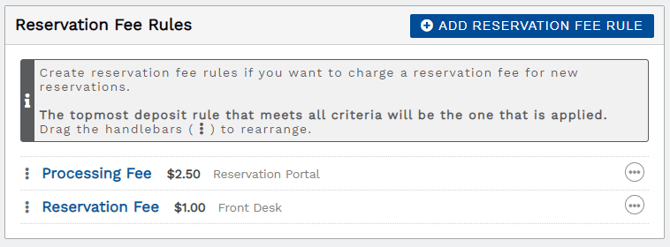 With multiple reservation fees, only the topmost applicable rule will be applied.
For example, using the setup shown above, the first rule will be skipped when a reservation is booked by staff through the front desk This means the Reservation Fee will be $1.00 because the first fee in the list did not apply.
Apply a Reservation Fee to New Reservations
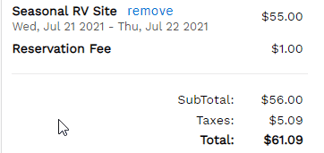
When creating a reservation from the front desk, you will see a reservation fee line item in the reservation summary if a fee applies.
When a guest makes a reservation from the reservation portal, they will also see a reservation fee line item in the summary if a fee applies to their reservation.
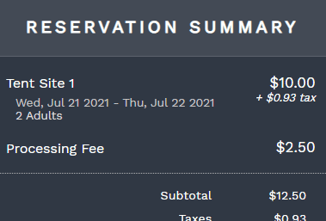 Reservation fee line item in reservation portal summary
After a reservation has been made, the reservation fee will display as a regular charge on the Charges tab of a reservation.
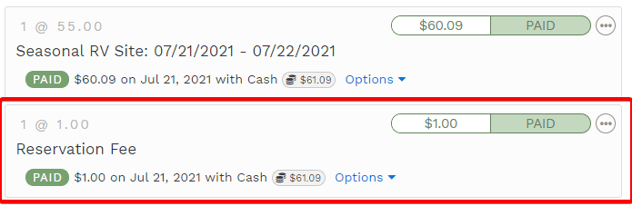
You can manage this charge just like any other charge if you need to refund the payment, customize the charge amount, remove the charge, etc. For reservations longer than one month, the service fee will be charged each month, however it is automatically set up to only charge one time. If you want to pass on the service fee each month, create the reservation fee as a recurring charge or increase monthly rates by $3.50.
Remove a Reservation Fee from a Reservation
Sometimes a reservation has special circumstances and you do not wish to charge the guest their reservation fee. In these cases, the applied fee may be deleted or zeroed out on the reservation's Charges tab. You may use these links for more information and a walkthrough of each action:
Remove a Reservation Fee Rule
If you no longer wish to apply a Reservation Fee to new reservations, you may delete the rule from your property settings. Once you delete a rule, the Reservation Fee will not be applied to any reservations created after that point.
- On the main menu, go to Settings > Property > select the Fees tab
- On the rule you wish to remove, click the circle with 3 dots > select Delete
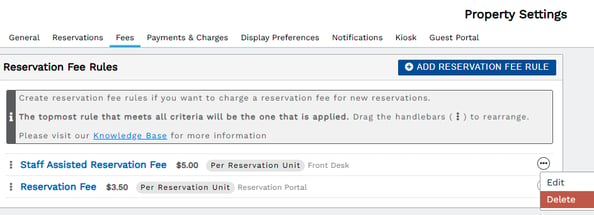
NOTE: Removing the Reservation Fee rule will not affect existing reservations. If you wish to remove a fee from previously booked reservations, check out this information above: Remove a Reservation Fee from a Reservation.
🙋♀️ Still need help? Email: support@fireflyreservations.com and one of our technicians can help answer your questions.
💭 We would love to know if this article was helpful in addressing your issue. If you could answer the question below it will notify our team. Thank you