![Firefly-logo-high-res.png]](https://fireflyreservations.com/hs-fs/hubfs/Firefly-logo-high-res.png?height=50&name=Firefly-logo-high-res.png)
Last Updated: June 29, 2026
Link to Feature: https://app.fireflyreservations.com/Accounting/EndOfDay (or click here)
This article applies to the following:
- Parks using the accounting feature and processing their End of Day
- Users with Accounting Settings and Accounting Procedures enabled
Quick Links
- Cannot post payment for overpaid charge...
- No financial account for...
- No utility reading associated with charge...
- No applicable fee rule found...
- Error - debits do not match credits...
Common End of Day errors, and how to fix them...
"Cannot post payment for overpaid charge. Update charge amount or refund payment."
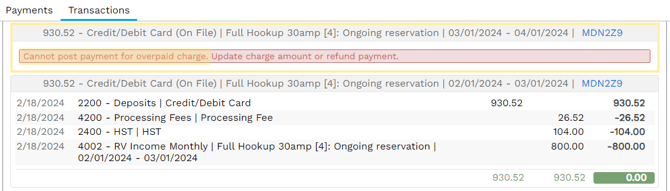
What it means: A charge's payment(s) equal more than the total charge price. All funds must be accounted for so Firefly needs to know where this extra money should go.
How to fix it: Go to the reservation's Charges tab by clicking on the blue, hyperlinked look up code. On the charge, you will see an "Overpaid by" amount below the charge's payments and refunds. In this example, a Good Sam coupon was added after the charge had been paid in full. The overpaid amount of $90.40 is the difference between the amount paid and the amount after the coupon.
.png?width=670&height=196&name=Untitled%20design%20(12).png)
You have three options to balance an overpaid charge:
- Remove the coupon if applied by mistake or undesired
- Edit the charge to reflect the amount paid.
- Refund the $90.40.
-
Transfer the $90.40 to another charge.
"No sales financial account for ..."
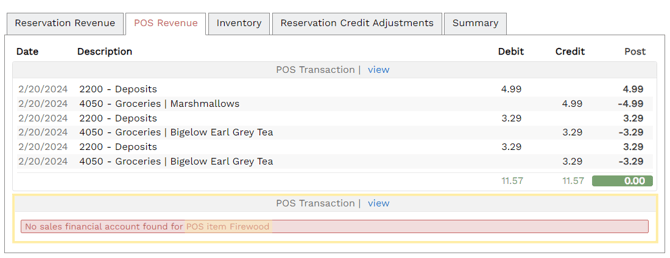
What it means: An item does not have an appropriate financial code linked.
How to fix it: Go to the item with the error and link the account that is missing. You can be missing the Sales Financial Account (needs an income account linked), the Inventory Financial Account (needs an inventory asset account linked) or a COS Financial Account (needs a a cost of goods sold/expense account linked).
In the example above, the Firewood is missing the sales financial account. I would fix this by going to Point of Sale > POS Items, and clicking on Firewood to link the appropriate accounts.
If you have your POS Categories linked to financial accounts, ensure a category is selected. If not, link the account codes on the right and Save the changes at the bottom..png?width=670&height=434&name=Untitled%20design%20(11).png)
Return to Quick Links
"No utility reading associated with the charge Electric"
.png?width=670&height=443&name=Untitled%20design%20(5).png)
What it means: a utility reading has been entered under "New Charge" without an associated meter being selected.
How to fix it: click on the lookup code (in this case, L8BB74). Find the charge in question, and click the circle with the three dots, and then edit.
When the edit screen pops up, choose the utility meter associated with the unit under "Does this charge apply to any of these utility readings?" Click Save when you've selected the unit.
Note that the reading you're billing for does not need to be the same as the one selected.
.png?width=416&height=488&name=Untitled%20design%20(7).png)
Don't see a utility reading to choose from in the drop down? Go to Property > Record Utilities, and put in a dummy reading of 0 on the meter in question using "Do not charge".
"No applicable lock fee rule found..." or "No applicable reservation fee rule found..."
.png?width=670&height=236&name=Untitled%20design%20(9).png)
What it means: a charge has been entered as the wrong charge type.
In the example above, the park does not utilize the Lock Fee feature, but they have entered a charge classified as a lock fee.
How to fix it: click on the look up code, and go to the charge in question (in this case, it's a Kayak for 12/05/2022 - 12/06/2022). Click the circle with the three dots, and choose edit.
On the edit screen, open the drop-down under "What is this charge for?" and select the appropriate charge. In this case, we would choose Add-on, and link the charge to the correct add-on. Click Save at the bottom.
.png?width=365&height=482&name=Untitled%20design%20(10).png)
"Error - debits ($) do not match credits ($)"
There are several scenarios that may cause this error. We will go over each type and how to fix it below.
What it means:
-
an account is set to the incorrect class or an item's financial account is set to an incorrect account class
-
an item has had the tax added/removed between the time the sale was made (and paid for) and the End of Day was run.
How to fix:
-
If an account is set to the incorrect class or ...
.png?width=670&height=195&name=Untitled%20design%20(14).png)
When looking at the example above, we can see a discrepancy of $53.04. This is because the Processing Fees' $26.52 is being added to the debit column, instead of the credit column. We can tell that it's not set to the appropriate account class.
To correct an account's setup, go to Settings > Accounting > Chart of Accounts. Click on the account in question, and change the account type accordingly. In our example, Processing Fees should be an Income account, not Expense.
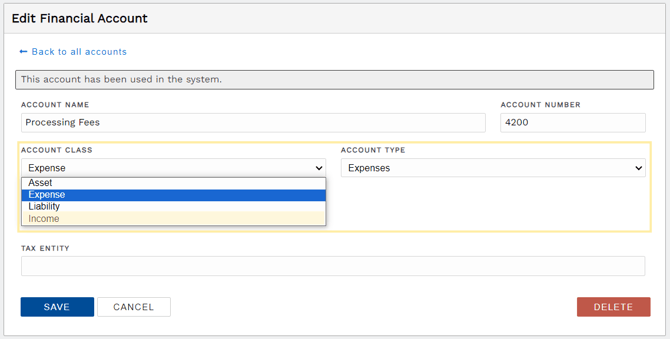
For a list of standard account types and what their class should be, please visit the Chart of Accounts section in the Accounting Set Up Guide.
To correct an item's financial account, you will go to the item's setup instead of the Chart of Accounts. For example, if a Point of Sale item is giving the error, on Firefly's main menu you will go to Point of Sale > POS Items > find and open the item > ensure all financial accounts have an appropriate account class.
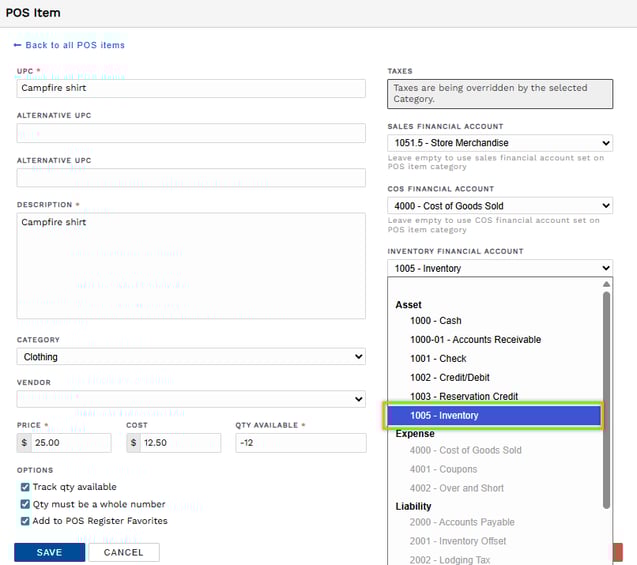
Firefly gives a clue to help you know if an account class is appropriate. Look for the accounts in black text. As we see above, the Asset accounts are black while the Expense and Liability accounts are grey.
-
If a tax has been added/removed between an item being paid for and the EOD run...

In this example, we see there is a discrepancy of $1.30. The customer paid $11.30 for the item, but only $10.00 was earned in revenue. Therefore, it's safe to assume the missing $1.30 is likely due to taxes. We can also use math to confirm, if we take the $10 and multiply it by our tax rate of 13%, we get that missing $1.30.
To fix this, go into Point of Sale > POS Items. Find the item in question, and click on it. Add/remove the tax, and save. Finish your End of Day Update, then you can edit it back if needed.
🙋♀️ Still need help? Email: support@fireflyreservations.com and one of our technicians can help answer your questions.
💭 We would love to know if this article was helpful in addressing your issue. If you could answer the question below it will notify our team. Thank you!