![Firefly-logo-high-res.png]](https://fireflyreservations.com/hs-fs/hubfs/Firefly-logo-high-res.png?height=50&name=Firefly-logo-high-res.png)
Last updated: May 22, 2026
Feature Link: https://app.fireflyreservations.com/GroupHolds or click here
Quick Links
- Change the expiration date of a group hold
- Add an additional unit to a group hold
- Remove a unit from a group hold
- Change the stay dates of a unit within the Group Hold
Make a Reservation with a Group Code
- Book a Group Hold Reservation from the Group Hold
- Book a Group Hold Reservation on the Reservation Portal
- Book a Group Hold Reservation on the Front Desk
Manage a Reservation's Associated Group
- Add an existing reservation to a group hold
- Edit a reservation's associated group hold
- Remove a reservation from a group hold
View and Track a Group Hold and Associated Reservations
Report for Group Hold Reservations
Overview
A group hold is a flexible tool for managing the reservations of guests traveling together. It allows your property to book and track large parties while keeping the process simple for both guests and staff. With the same effort as creating a standard reservation, staff can quickly set up the group hold and block multiple units for that group. On your grid, group holds also make it easy to identify the reservations for guests traveling in groups.
Most commonly, group holds work like a traditional hotel room block: a set of units is temporarily held so individuals from a group may book at their convenience. One main organizer arranges the hold with your property, and each guest then books and pays for their own reservation separately. Individuals from the group are given the unique group hold code to enter when searching for availability on your reservation portal or when contacting your staff. The group hold code allows the system to share all available units set aside for that group so each guest has complete control in selecting their unit and paying for their stay.
You can also use group holds in a second, less traditional way: to link existing reservations together as part of a traveling group. Instead of using the group hold to block units for future bookings, you may create a group hold and then add existing reservations to it so they are clearly identified as part of the same traveling group.
Create a Group Hold
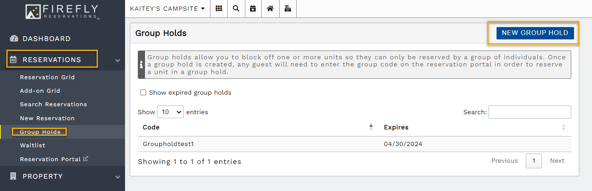
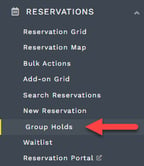
- Click Reservations on the left menu
- Click Group Holds drop down
- On the group holds page, click New Group Hold in the top right.
- When creating a new group hold, the following information needs to be entered:
- a unique group hold code - this is the code that the organizer will share with their party to use to book the group held sites
- the Expiration Date (Note: A group hold expiration can be adjusted any time prior to the set expiration date. Once a group hold expires, it cannot be reinstated. You will need to create a new group hold instead.)
- link the guest organizing the group
- any coupons you wish to apply for the group
- any additional notes you wish to include for your team. These are for staff view only.
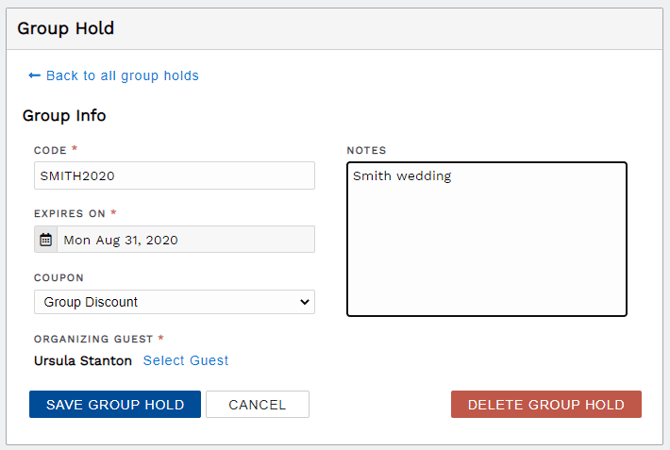
- Once all required fields have been filled, click Save group hold.
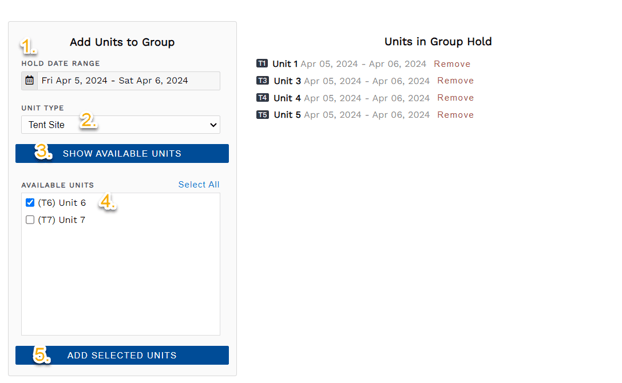
- To block units for future bookings using the group hold code:
- Enter the Hold Date Range - this is the earliest arrival date and latest departure date a guest may use when booking the unit. Reservations do not need these exact arrival and departure dates, but the stay must be within these dates.
- Enter the Unit Type
- Click Show Available Units
- Check the box next to the units you wish to include.
- Click Add Selected Units to add the units to the group hold.
- Done! You may repeat the process to add more units with a different date range.
Your grid now displays your group hold's blocked units, and the group hold's details may be shared with the organizing guest!
Notify the Organizer
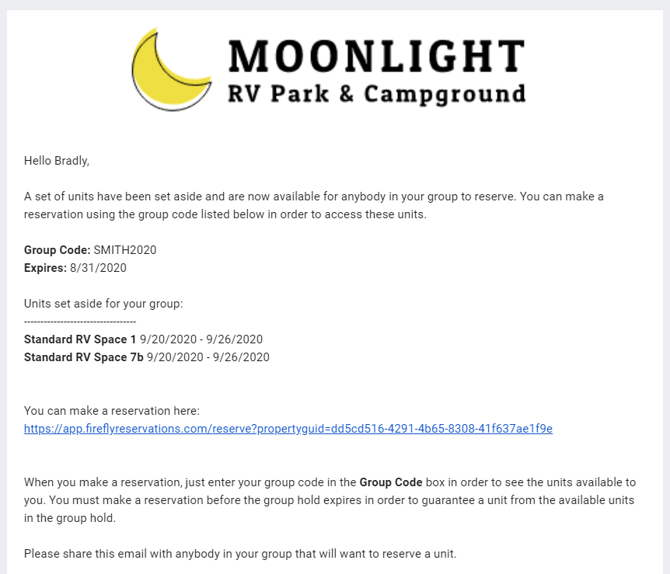
When you create a group hold, you have the option to send an email template specifically for group hold notification within the Group Hold settings. This may serve as confirmation of the completed group hold and many organizer's find it exceptionally helpful to see all units set aside for their group in one convenient email. .
- Confirm the email template has the information you wish to send:
- Click Settings on the left menu
- Click Email Templates
- Click on the Group Hold Notification email to edit the text
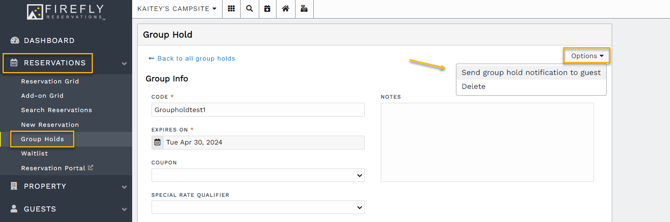
Sending the Group Hold Notification Email:
- Click Reservations on the left menu
- Click Group Holds
- Choose the group hold you need to view
- Click Options in the top right corner
- Click Send Group Hold Notification to Guest
Here is a sample of what the email can look like:
Edit a Group Hold
Change the expiration date of a group hold
To edit the expiration of your group hold, simply click on the gray date field then select the new expiration date from the calendar. Click Apply to save your new expiration date.
CAUTION: A group hold expiration may be edited any time prior to the expiration date. Once a group hold expires, it cannot be reinstated. You will need to create a new group hold instead.
Add an additional unit to a group hold
Adding additional units to a group hold, after it is created, follows the same process as when creating the group hold. See the instructions above to add a unit to a group hold.
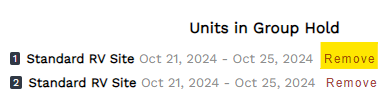
Remove a unit from a group hold
When in a group hold, simply click on the red Remove button next to a unit.
Change the stay dates of a unit within the Group Hold
To edit a group hold unit's stay dates, remove the current stay first then add the unit again for the desired dates.
Make a Reservation Using a Group Code
NOTE: When booking a group hold unit, the arrival and departure dates must be in the date range of the unit's hold.
If the guest would like to arrive before or depart after the unit's group hold dates, you may book the reservation for the dates within the group hold then immediately change the stay dates or remove the unit from the group hold then add it back with the desired hold dates and continue booking the reservation.
Book a Group Hold Reservation from the Group Hold
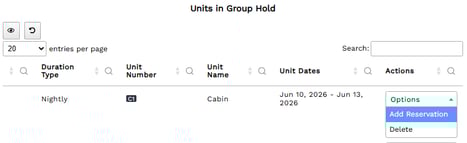
In a group hold's setup page, you may initiate a new reservation from a unit's Options dropdown.
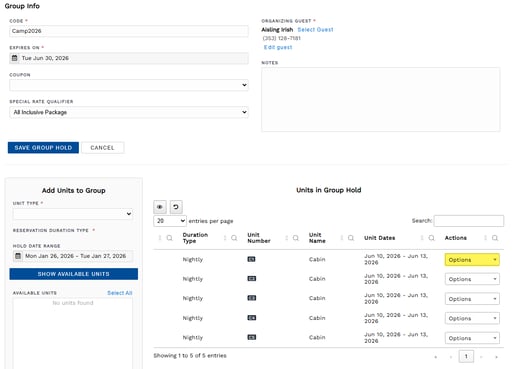
When you click the Options dropdown, you will select Add Reservation as shown below in blue.
This takes you to the New Reservation page where the details of the unit's group hold are displayed at the top and many of the booking steps are autofilled:
-
unit type
-
arrival and departure using the unit's hold dates
-
group hold code
-
rate qualifier, if setup in the group hold
- the group organizer is added as the guest, this is easily changed by clicking "select guest". No extra clicks than before - just a step you can skip if booking under the organizer.
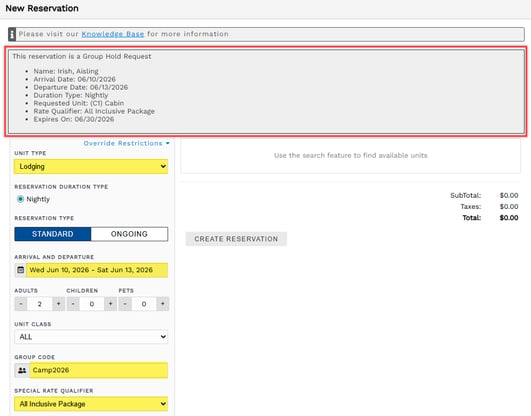
NOTE: If a rate qualifier is designated in the group hold, selecting a different one in the dropdown during booking will not override what is applied through the group hold code.
You must complete the booking then change the rate qualifier on the reservation's Units tab, using the unit's Options dropdown.
Any rate qualifier may be added if one is not set up in the group hold.
Book a Group Hold Reservation on the Reservation Portal
When a guest is ready to make a reservation for a unit in a group hold, they can do so from the reservation portal just like they are making any other reservation.
They will enter their group code into the Group Code box in order to see the units set aside for their group.
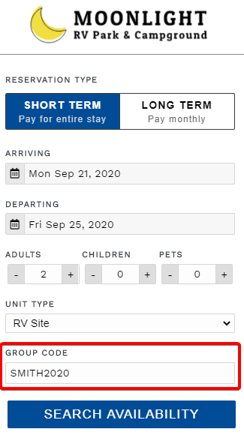 Enter the group code to view available units for the group
Book a Group Hold Reservation on the Front Desk
Staff members can also use the group code when creating a reservation from inside of Firefly.
- On the main menu, click the Reservations dropdown then select New Reservation
- Enter the information for the reservation as needed
- Enter the Group Code
- Proceed to create the new reservation
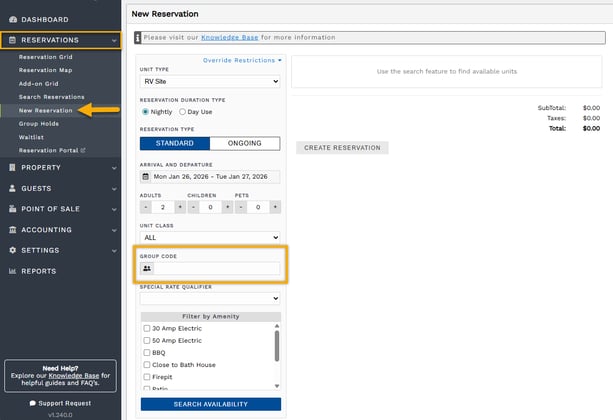
TIP: Click on the Group Code's People icon to see a pop-up of active group holds.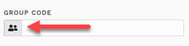
Click on one then click Select. Firefly will automatically enter the group hold code for you.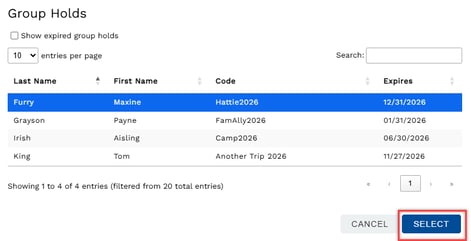
Manage a Reservation's Associated Group
Firefly automatically adds a reservation booked with a group hold code to the associated group. But we understand that plans change and sometimes mistakes happen, so we've made it easy for you to edit or remove the group a reservation is associated with. You can also add any existing reservation to any group hold. The steps for each action are outlined below.
Add an existing reservation to a group hold
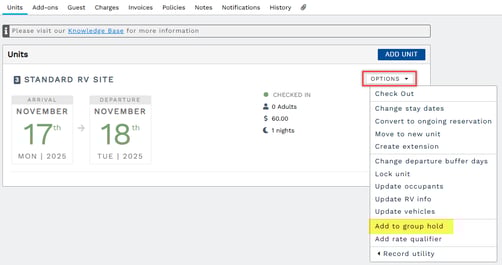
- On the reservation's Units tab, click the unit stay's Options dropdown then select "Add to group hold".
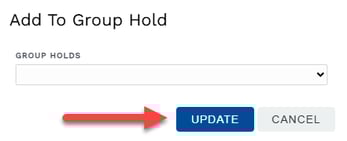
- Select a group from the dropdown list, in the Add to Group Hold pop-up.
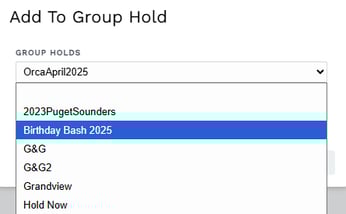
- Click Update to save the change.
Edit a reservation's associated group hold
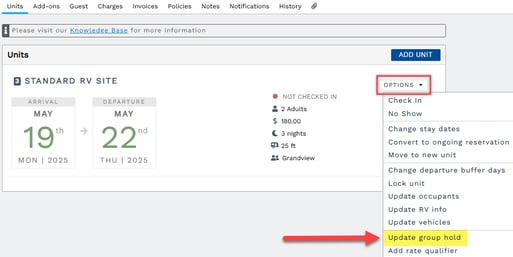
- On the reservation's Units tab, click the unit stay's Options dropdown then select "Update group hold".
- Select a group from the dropdown list, in the Add to Group Hold pop-up.
- Click Update to save the change.
Remove a reservation from a group hold
- On the reservation's Units tab, click the unit stay's Options dropdown then select "Update group hold".

- Click the blank line at the top of the dropdown.
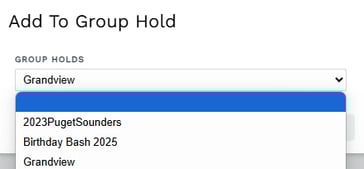
- Click Update to save the change.
IMPORTANT: The desired group hold may not be an option if the hold has expired. It may also show unavailable if the unit or stay dates were not part of the group hold.
Use the "Override restrictions" option to add any reservation to any group hold.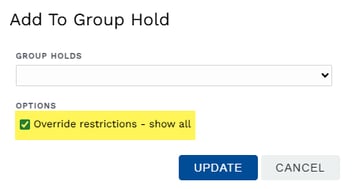
View and Track a Group Hold and Associated Reservations
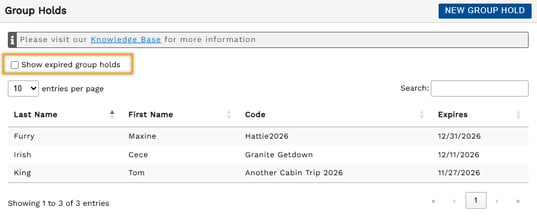
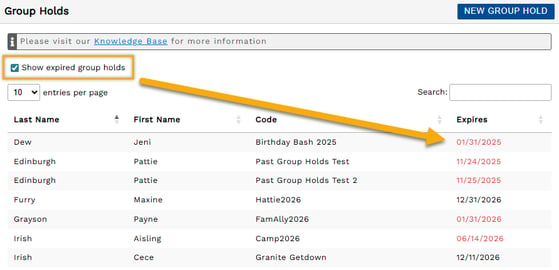
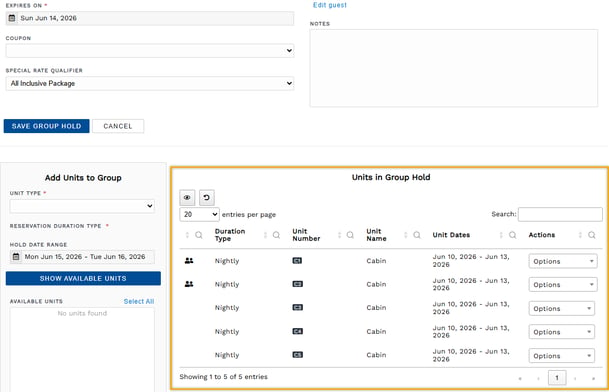
Reservations booked with a group hold code, as well as reservations manually added to a group hold, permanently maintain the association with the hold. A group hold reservation does not lose it's designation even after the departure date or hold expiration. This association is also permanently seen on the Group Hold details page, the Reservation's Units tab, the Reservation Grid, and the Group Hold Reservations report.
Report for Group Hold Reservations
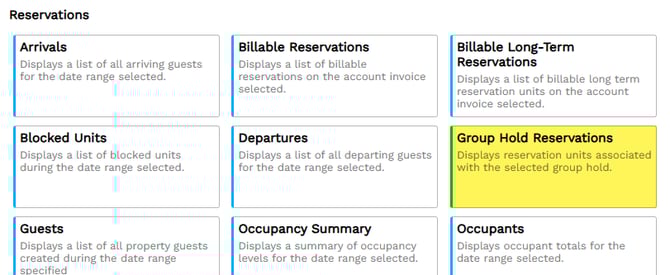
The Group Hold Reservations report allows you to view, print, and export a list of reservations associated with group holds. From the main menu, go to Reports then scroll to the Reservations section where you will find the report in the far right column.