![Firefly-logo-high-res.png]](https://fireflyreservations.com/hs-fs/hubfs/Firefly-logo-high-res.png?height=50&name=Firefly-logo-high-res.png)
Last Updated: January 8, 2026
Link to Feature: https://app.fireflyreservations.com/Guests (or click here)
Quick Links
- Overview
- Video Walkthrough
- Create a New Guest Profile
- Find a Guest Profile
- Guest Profile
- Guest Tab
- Guest Vehicles Tab
- Guest Reservation Credits Tab
- Guest Reservations Tab
- Understanding the Details Tab
- Manage a Guest Profile
- Edit a Guest Profile
- Delete a Guest Profile
- Restore a Guest Profile
- Guest Reports
Overview
It's important to store information about your guests. Firefly has a built in guest book where you can find basic contact information, notes, vehicle information, reservation credits, and a historical record of reservations made in Firefly.
Video Walkthrough
Create a New Guest Profile
There may be times you wish to create a new guest profile without making a reservation. This is a very quick and easy process on Firefly's Guest page.
To create a new guest profile without making a reservation:
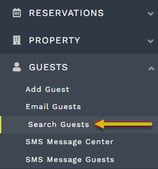
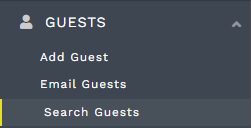
- On the main menu, go to the Guests dropdown then select Search Guests
- Click "New Guest"

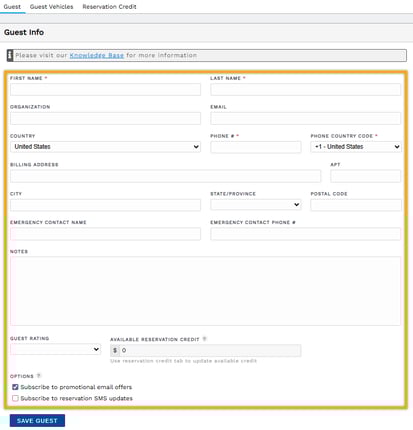
- Enter the guest's information
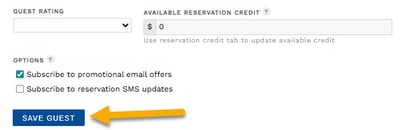
- Be sure to Save down at the very bottom of the page.
Find a Guest
To navigate to the guest profile:
- On the main menu, go to the Guests dropdown then select Search Guests
- On this page, the most recently created guest accounts are shown by default.
- Do not panic if your display shows "No guests yet". This is simply the result of no new guest profiles created during the default time range for the display. Below is an example of what you may find when no new guest profiles have been recently created.

- Do not panic if your display shows "No guests yet". This is simply the result of no new guest profiles created during the default time range for the display. Below is an example of what you may find when no new guest profiles have been recently created.
- To find a guest not displayed, enter the guest's information in the search fields and click Search

- The list displaying guest profiles updates to include those matching your search.
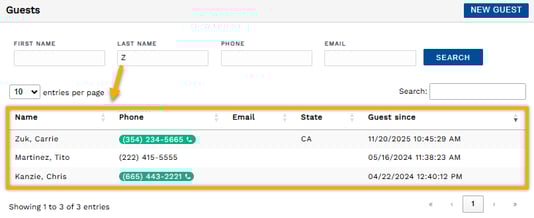
TIP: The resulting guest list includes guest profiles containing the searched characters.
To explore the results or help you find exactly who you are looking for, you may sort the list by clicking on a column's heading. Each click rotates the list order through ascending, descending, and back to the default view.
Guest Profile
This section will go through each of the tabs on the Guest Profile in detail.
Guest Tab
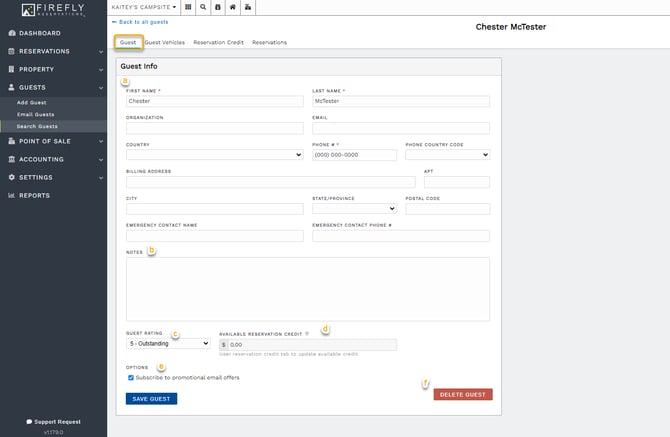
On the first tab, Guest you will find the following information:
-
- Guests Personally Identifiable Information (PII) such as their First Name, Last Name, Organization Information, Email, Address, phone Number and Emergency Contact Info
- Guest Notes: These are internal notes for you and your team. They will not show anywhere that the guest would see them.
- Guest Rating: This is for you to use as needed. The ratings are 1-5, with an additional rating of "Banned" which will prevent the user from making an online reservation, and prompt staff when adding the guest to a reservation.
- Available Reservation Credits: These are credits that are attached to the specific guest, rather than a current reservation. They can be edited on the "Reservation Credits" tab
- Options: You can check/uncheck this for your internal records or if you are to export guest information and import it into a secondary software for promotional communication
- Delete Guest: You can click this to delete a guest record
Guest Vehicles
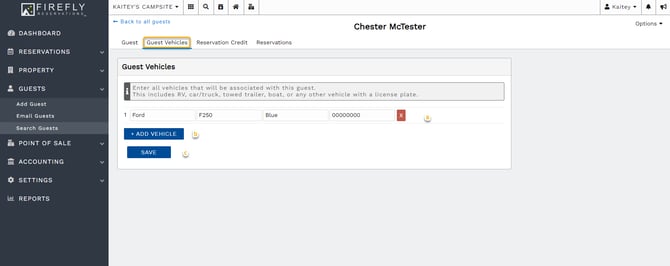
On the second tab, you will find any guest vehicles that have been added to the guest, either by the guest during their reservation check out process or by a staff member. You can also add or delete vehicles on record for the guest.
-
- Vehicles already added
- Add Vehicle: Click this to add a new Vehicle
- Save: When adding New Vehicle information click here to save
Reservation Credit
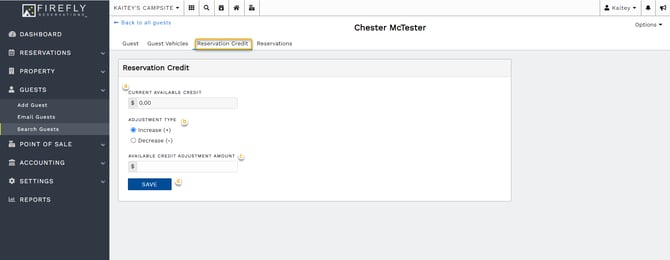
The third tab is where reservation credits connected to the guest can be viewed or updated.
-
- Current Amount Available: This is the amount already available to the guest
- Adjustment Type: To change the current amount, you can choose here to increase or decrease the amount that you choose to edit by
- Available Current Adjustment Amount: This is the amount you will change the current amount by
- Save: Click save after entering in the changes you wish to make
Reservations
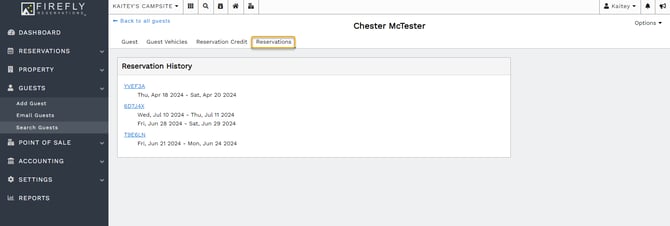
The fourth tab, Reservations, is where you can find the reservation history of that specific guest. If you click on any of the linked reservations it will take you directly to the reservation.
Manage A Guest Profile
You have two options to access a guest's profile: the Guests dropdown from the main menu and a reservation's details page.
- From the main menu, click Guests then click Search Guests. Enter the guest's information then then click Search. Click on a the search result to open the guest's profile.

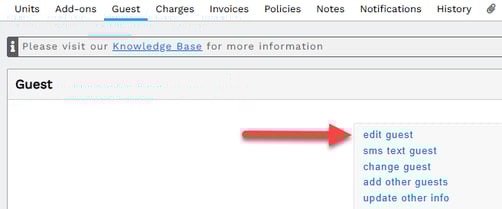
- From a reservation's details page, go to the Guest tab then click on edit guest.
Edit a Guest Profile
A guest profile may be edited at any time. Simply click on any tab to gain access to the guest's information housed in Firefly. Make changes as necessary and be sure to click Save at the bottom of a tab before navigating to away.
Delete a Guest Profile
To delete a guest profile, go to the Guest tab of a guest's profile. Click the red Delete Guest button in the lower right corner. 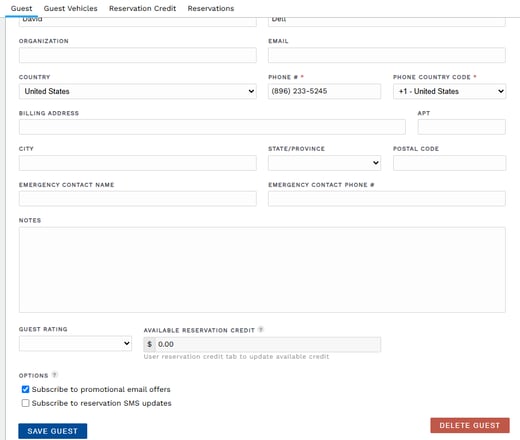
NOTE: Deleting a guest profile will not affect information associated with the guest's reservations or POS transactions.
Restore a Guest Profile
To restore a deleted guest profile, go to a reservation's Guest tab. Click edit guest to access the deleted profile. 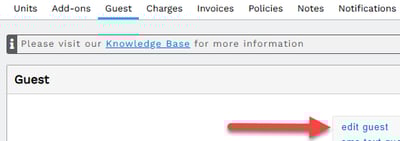
When the profile opens on the Guest tab, click the green Restore Guest button in the lower right corner.
Return to Quick Links
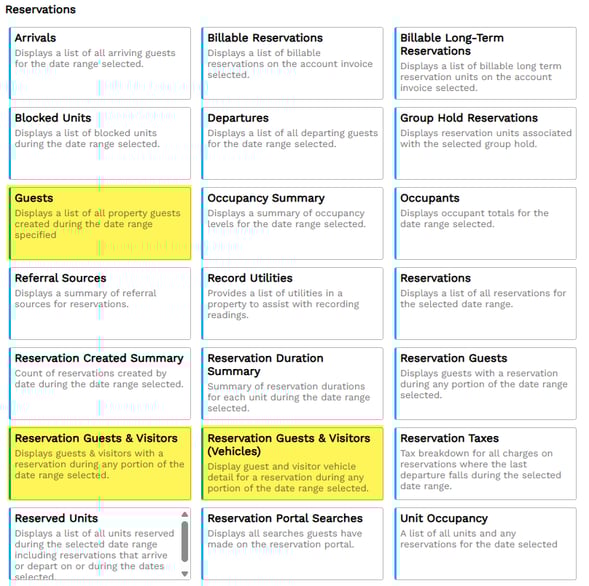
Guest Reports
Firefly offers several reports to help you utilize the guest information stored in the system.
To print a list of all guests in the system, you will want to use the Guests report with the date range of Firefly use.
To print a list of guests and visitors with reservations, you can use either of the Reservations Guests & Visitors reports, choosing the appropriate report depending upon the information you desire.
🙋♀️ Still need help? Email: support@fireflyreservations.com and one of our technicians can help answer your questions.
💭 We would love to know if this article was helpful in addressing your issue. If you could answer the question below it will notify our team. Thank you!