![Firefly-logo-high-res.png]](https://fireflyreservations.com/hs-fs/hubfs/Firefly-logo-high-res.png?height=50&name=Firefly-logo-high-res.png)
Last Updated: September 30, 2026
Link to Feature: https://app.fireflyreservations.com/Coupons (or click here)
Quick Links
- Apply a coupon to a single item in a POS transaction
- Apply a coupon to all items in a POS transaction
- Remove a coupon from a single POS item sale
- Remove a coupon from all applied items in a POS transaction
- Remove all coupons from a POS transaction
- Remove a POS coupon setup
Overview
Coupons are a great tool for staff perks, marketing campaigns, or guest loyalty. For retail and Point of Sale (POS) use, they are helpful to move perishables or expiring merchandise before the product is no longer saleable. They also help clear out inventory at the end of your season or when you have a change in property merchandise designs.
IMPORTANT: A user profile must have the "Apply & Remove POS Coupons" permission enabled to manually apply or manage coupons in a POS transaction. See the first section below for further details.
Coupon Permissions
To create new coupons and manage existing coupons, a user's profile must have the Manage Settings permission enabled.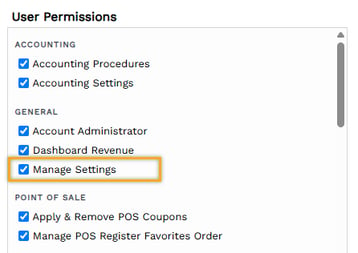
To manually manage coupons in a POS transaction, a user's profile must have the Apply & Remove POS Coupons permission enabled.
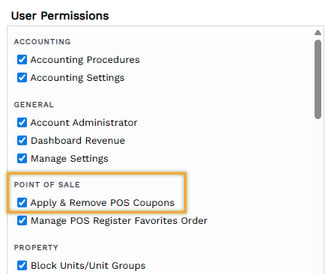
If a user profile does not have the permission enabled, the blue Apply Coupon button will not appear when they use the POS register, and there will be no blue Apply Coupon link in the POS item's sale details.
Without POS coupon permission enabled: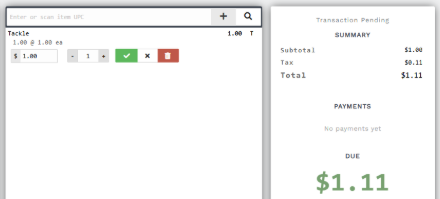
With POS coupon permission enabled: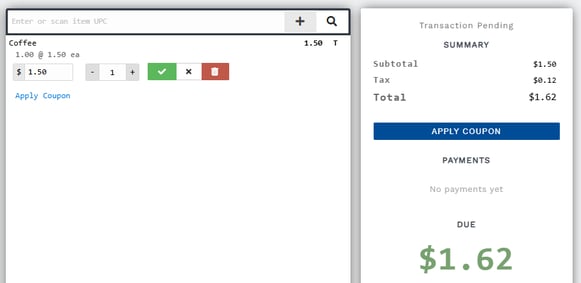
IMPORTANT: Coupons with the auto-application option enabled are applied when an eligible item is scanned into a POS transaction, but a user must have the above permission enabled to add, change, or remove a coupon or manually apply one that is not auto-enabled.
Create A New POS Coupon
Point of Sale coupons are quick to setup and quick to manually apply on an as needed basis in any POS transaction. If you utilize POS Item Categories, you may enable an option for automatic coupon application when an item in an included POS category is scanned into a transaction.
-
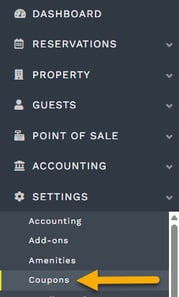
From the main menu, go to Settings > Coupons.
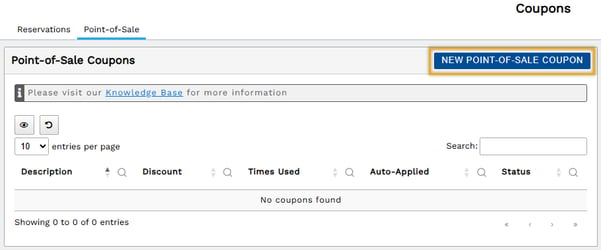
- On the Point-of-Sale tab, click "New Point-Of-Sale Coupon".
- Enter the basic coupon information.
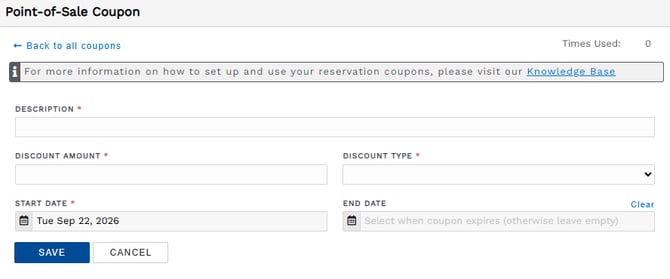
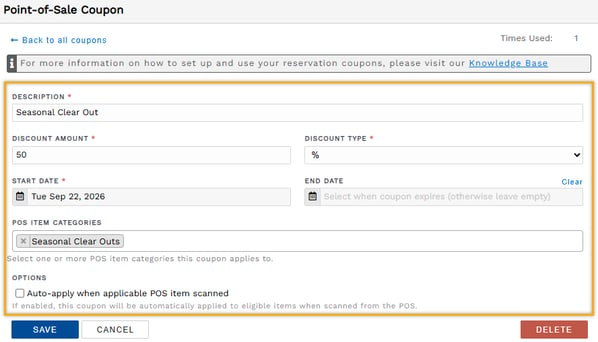
Description - The name your staff and guests see when the coupon is applied.
Discount Amount - The amount your guests will be saving with the discount.
Discount Type - Select if the discount is a percentage (%) or a set dollar amount ($).
Start/End Dates - Choose the date range the coupon will be valid for. Do not enter an end date if you want the coupon to be valid indefinitely. You can always add an end date later.
-
If your POS setup utilizes POS Item Categories, you will see additional settings in your coupon setup.
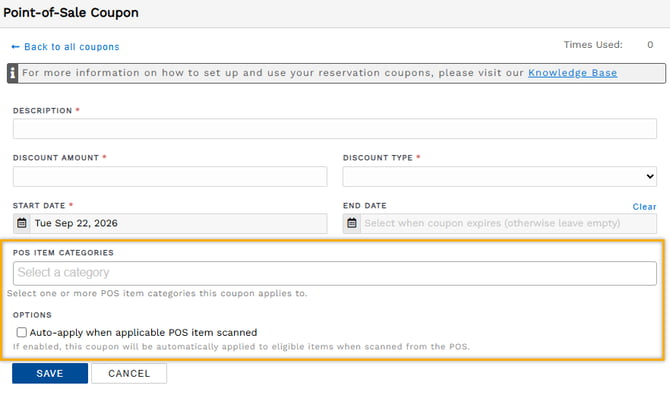
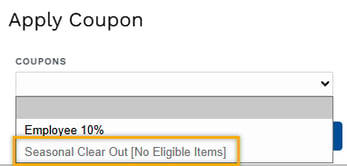
POS Item Categories - All categories the coupon may be applied to must be added.CAUTION: If a POS item category is not included in a coupon's setup, all items in the POS category are ineligible for the coupon.
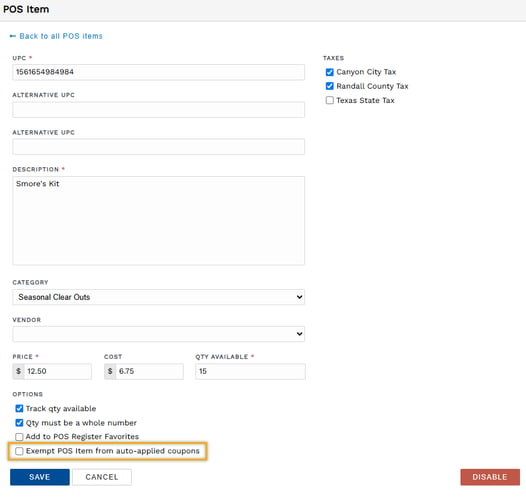
Options - Check the box to automatically apply the coupon when a POS item from one of the included POS categories is scanned.
IMPORTANT: You may exempt a POS item from an automatically applied coupon on the POS item setup.
- Click Save. Your coupon is now ready to be used in a POS transaction!
Use a POS Coupon
Coupons can be manually applied to individual items or applied at the transaction level to all eligible items in the POS transaction.
Coupons with the auto-application option enabled will automatically apply when an item in an eligible POS category is scanned into a POS transaction.
Coupons may not be stacked. Only one coupon can be applied to a POS item at a time.
Apply a coupon to a single item in a POS transaction
- In the POS register's shopping cart, click on the sale item you wish to apply a coupon to.
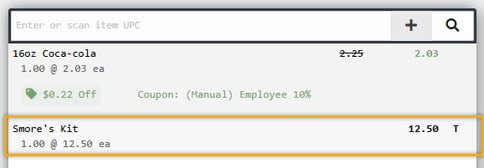
- Click Apply Coupon.
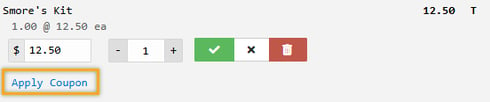
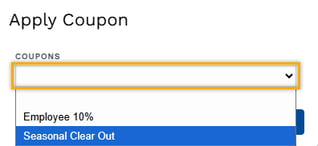
- In the Apply Coupon pop-up, click the Coupons dropdown and select the coupon.
- Click Save.
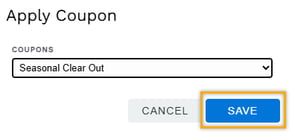
- The item's detail box is updated to reflect the coupon application.

IMPORTANT: A coupon is applied as long as an item meets the coupon's criteria.
Apply a coupon to all items in a POS transaction
Transaction coupons are applied to all eligible items that do not already have an existing coupon.
TIP: If you wish to apply a specific coupon to all eligible items in a POS transaction, you must first remove all existing coupons then apply the transaction coupon.
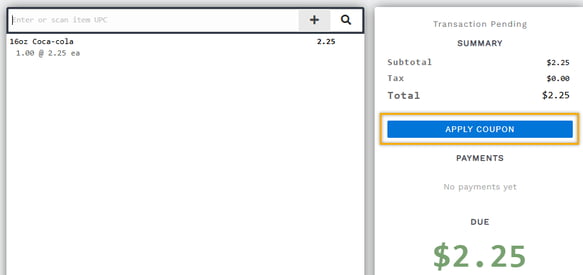
- In the POS register, with item(s) added to the transaction, click Apply Coupon.
- The Apply Coupon pop-up appears. Click the Coupons dropdown and select the coupon.
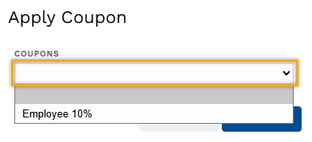
- Click Save.
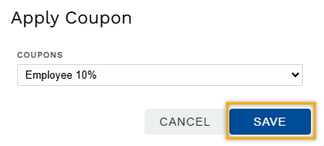
- The transaction's summary reflects the applied coupon.
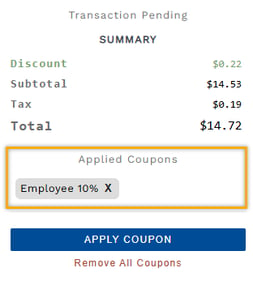
IMPORTANT: A coupon is applied to all eligible items without an existing coupon.
Confirm POS Coupon Use
Firefly makes it easy to identify applied coupons in a POS transaction and review each coupon’s discount details.
Confirm a POS item coupon
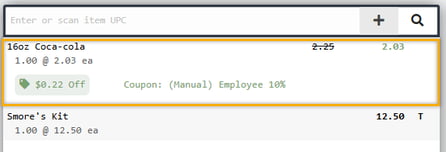
When a coupon is applied to an item in a POS transaction, the item's detail box appears as shown with the following information:

- a strikethrough of the original price to the right of the item's description
- the discounted sale price on the far right of the item's description line, in green text
- the discount amount on the bottom left in a light green box with a tag icon for quick visual reference; the word "Off" after the dollar amount makes it clear this is the discount given
- the bottom center shows the coupon details in green; the word Coupon with a colon is followed by the method of coupon application in parentheses and the name of the coupon
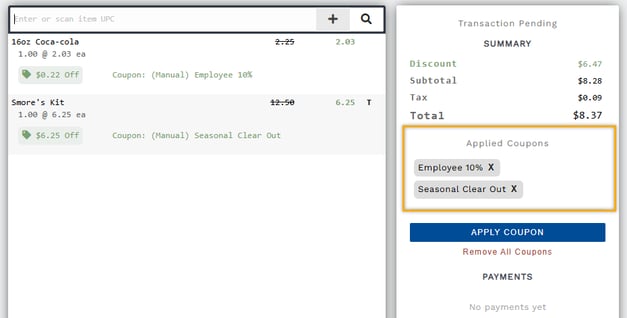
Confirm all coupons applied to a POS transaction
When one or more coupons are applied to items in a POS transaction, the transaction's summary displays an Applied Coupons section immediately below the transaction's total.
Edit an Existing POS Coupon
Edit a coupon applied in a POS transaction
- In the POS register's shopping cart, click on the item you wish to remove the coupon from.
- Click the blue "Override coupon" text.
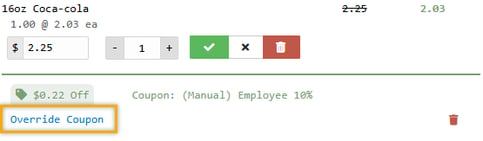
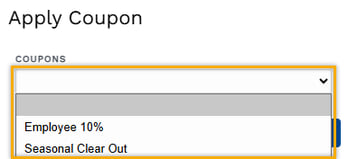
- In the Apply Coupon pop-up, click the Coupons dropdown and select a different coupon.
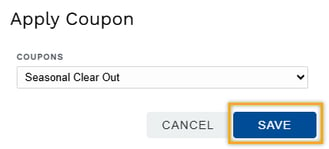
- Click Save to finalize your change.
Edit a POS coupon setup
-
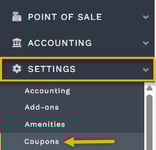
From the main menu, go to Settings > Coupons.
-
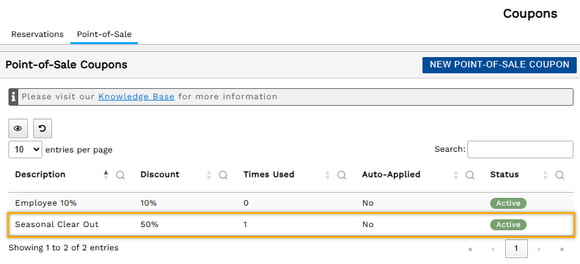
Select the Point-of-Sale tab then click on a coupon to open it.
-
Change any setting desired.
-
Click Save. Your next coupon use will apply the new settings.
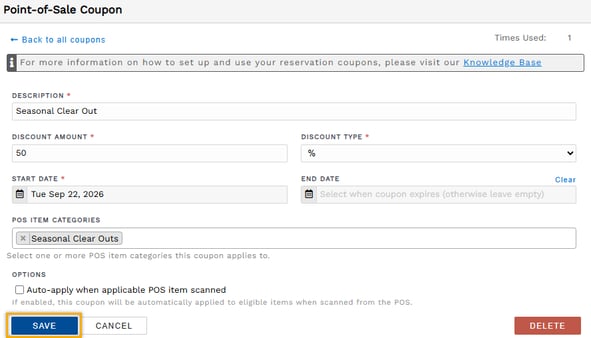
NOTE: Coupon setup changes do not affect previously applied coupons. To push a change to a previously applied coupon, you must remove the coupon then reapply it.
Remove a POS Coupon
Remove a coupon from a single POS item sale
- In the POS register's shopping cart, click on the item you wish to remove the coupon from.
- Click the red "trash can" icon in the lower right.
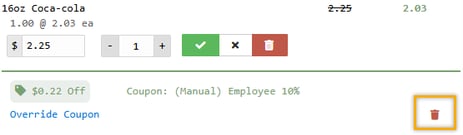
- Click the red "Remove" button to finalize the removal of the coupon.
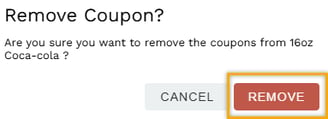
Remove a coupon from all applied items in a POS transaction
If a coupon has been applied to multiple items in a POS transaction and you want to remove the coupon, you may do this at the transaction level.
- In the Applied Coupon section of the transaction's summary, click the X on the coupon you wish to remove.
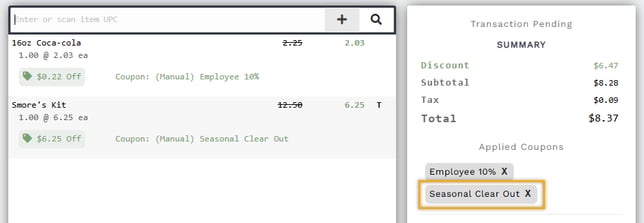
- Click the blue "Remove" button to finalize the coupon's removal from all applied items in the POS transaction.
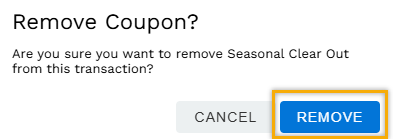
Remove all coupons from a POS transaction
You may remove all applied coupons from a POS transaction in one swift action. Simply click the red "Remove All Coupons" text immediately below the blue "Apply Coupon" button. 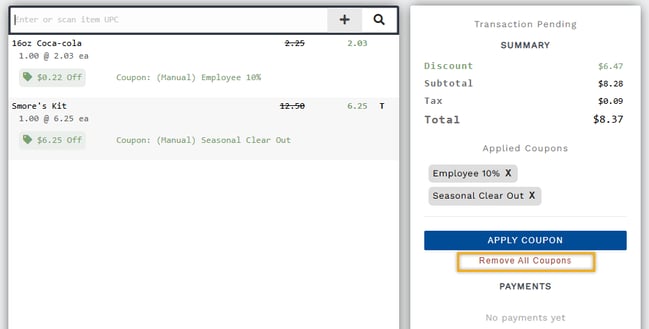
Remove a POS coupon setup
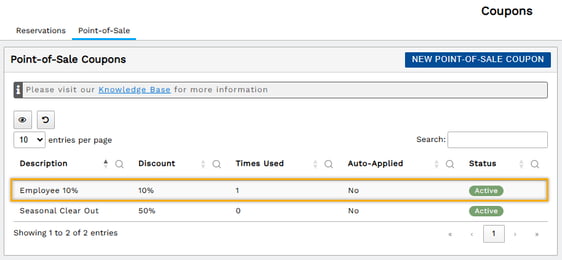
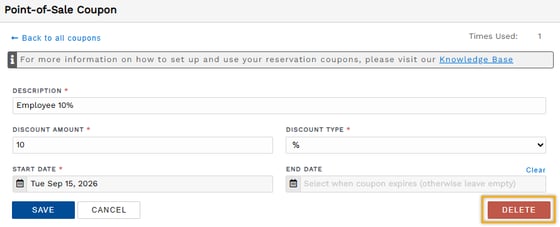
When you no longer want a POS coupon to be used, you may delete the coupon's setup. This disables the coupon from the system and automatically hides it on the Coupon page's Point-of-Sale tab.
-
From the main menu, go to Settings > Coupons.
-
Select the Point-of-Sale tab then click on a coupon to open it.
-
In the lower right of the coupon, click on the red Delete button.
Coupon Reports
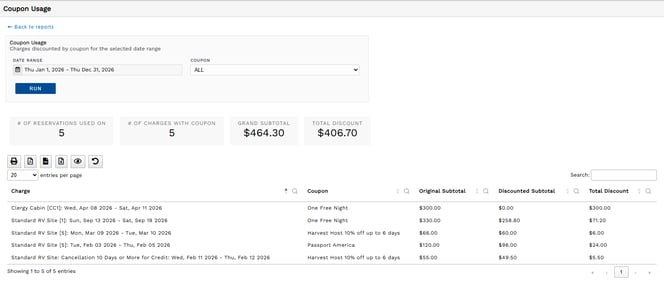
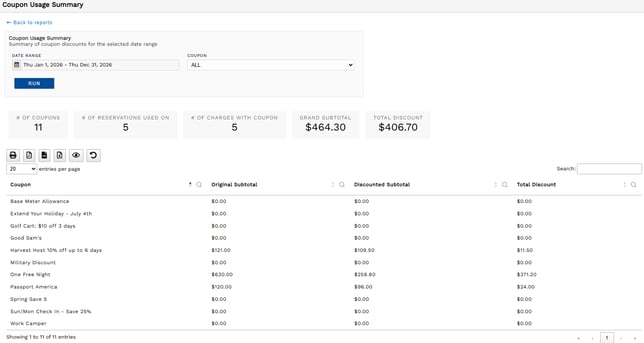
Firefly offers two reports to help you track the use of your coupons and the value of discounts shared with your guests or staff: Coupon Usage and Coupon Usage Summary.
Reports are accessed at the bottom of the main menu.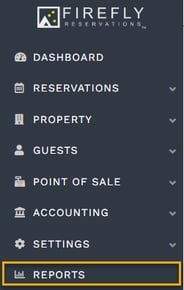
On the Reports page, both coupon reports are found in the Charges & Payments section.
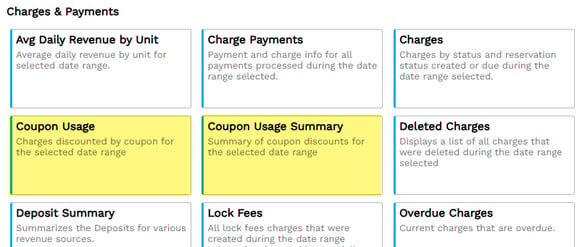
Coupon Usage: A line item report sharing the details of each coupon application.
Coupon Usage Summary: Sum totals for all applications of each coupon.
TIP: For additional guidance to get the most from Firefly reports, see: Running Reports.
🙋♀️ Still need help? Email: support@fireflyreservations.com and one of our technicians can help answer your questions.
💭 We would love to know if this article was helpful in addressing your issue. If you could answer the question below it will notify our team. Thank you!