![Firefly-logo-high-res.png]](https://fireflyreservations.com/hs-fs/hubfs/Firefly-logo-high-res.png?height=50&name=Firefly-logo-high-res.png)
Last modified: May 15, 2026
Quick Links
Main Menu Reservation Portal Access
Property Settings Reservation Portal Access
Quick Video Walkthrough for Reservation Portal Access and Portal URL
Overview
Your Firefly Reservation Portal is a self-serve webpage allowing your guests to book reservations at their convenience. You may share your reservation portal's link, also known as a URL. Many properties include a Book Now button on their website or include a link for the portal URL in their social media posts. You may also send it directly to your customers in emails or texts.
You may access your reservation portal within Firefly from the main menu and your Property Settings. The steps for each access option are shared below.
IMPORTANT: To accept online reservations, your account must be in Live mode. You may confirm the mode status of your account in your Account Manager.
To access your Account Manager page:
-
Click on the user name dropdown in the upper right corner of Firefly.
- Select Account.
On the General tab you will find your account in Live or Trial mode. If you are in Trial mode but have confirmed your setup is complete and you ready to go live, you can simply click the button that says “GO-LIVE”. Here is a link to your Account Manager Settings.
If your account was created before August 13, 2026, your park is in LIVE mode.
Main Menu Reservation Portal Access
- On the main menu, click the Reservations dropdown.
- Select Reservation Portal.
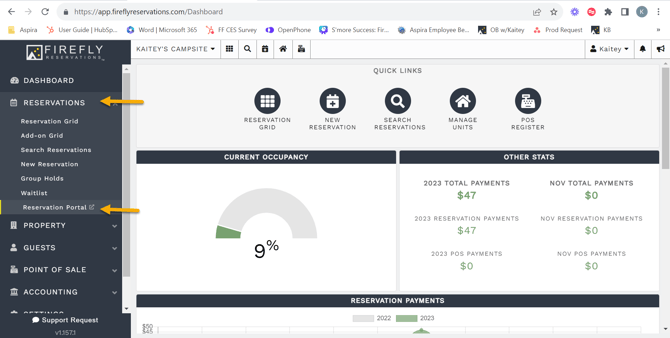
- You will be taken to your reservation portal in a new browser tab. Here you may highlight and copy the URL to save or share as needed.
Property Settings Reservation Portal Access
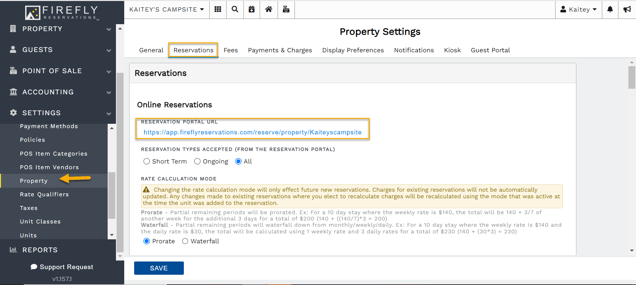
- On the main menu, click the Settings dropdown and select Property.
- In your Property Settings, click on the Reservations tab.
- Your Reservation Portal URL is the at the very top of the page. Click on the blue hyperlink to be taken to your reservation portal. From here, you can copy/paste the link to share it wherever you desire. Some examples are a "Book Now" button on your website, Instagram, or Facebook.
Quick Video Walkthrough for Reservation Portal Access and Portal URL