![Firefly-logo-high-res.png]](https://fireflyreservations.com/hs-fs/hubfs/Firefly-logo-high-res.png?height=50&name=Firefly-logo-high-res.png)
Last Updated: July 21, 2026
Link to Feature: https://app.fireflyreservations.com/Integrations (or click here)
Quick Links
- Enable the add-on
- Connect Firefly with S2N
- Sync Units
- Create or Configure a S2N Account
- Set Up Your Rates
View and Manage S2N-Integrated Reservations
- Identify S2N Reservations on the Reservation Grid
- Identify and Manage S2N Reservations on a Reservation's Details Page
- Guest Communications
Overview
Spot2Nite, often shortened to S2N, is an OTA specializing in RV parks, campsites, and glamping experiences. It has been called the "Airbnb of camping". You can connect an existing Spot2Nite account to your Firefly account or create a new S2N account through the integration. For properties new to S2N, this connection can increase your visibility through a marketplace built for outdoor enthusiasts across the US and Canada. For both new and existing S2N properties, the integration helps simplify reservation management and supports increased revenue opportunities.
Integration Pricing
In Firefly, all reservations on Spot2Nite integrated units incur a $3.50 per unit service charge on your monthly invoice. This covers the sharing of reservation information, both importing from S2N or exporting to S2N.
Here's an example of how Firefly service charges would appear on your invoice:
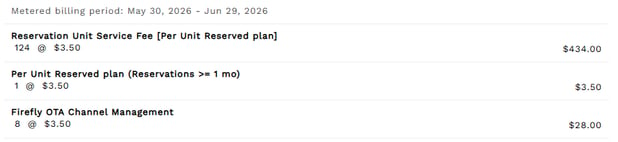
Spot2Nite's commission is 12.5% per booking. This can either be collected at the time of booking or invoiced monthly. If you will be creating a new Spot2Nite account through the Firefly integration or would like the most up-to-date pricing and usage information, see Campground Booking Marketplace - Spot2Nite for Operators.
Both Firefly and S2N fees can be passed through to the guest, which is a standard industry practice, using Rate Qualifiers or Reservation Fee rules in Firefly. Rate qualifiers allow you to provide all-inclusive pricing, while a reservation fee rule lets you itemize unit charges separately from reservation fees.
There is no charge for existing reservations that are imported or exported as part of the initial integration setup.
S2N Integration Setup
Enable the add-on
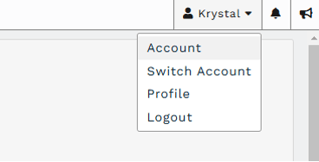
- In the upper right corner of Firefly, click on the dropdown for your user name.
- Select Account.
-
Inside your Account Manager, select the Addons tab.

-
Check the box for the Spot2Nite addon and click Save.
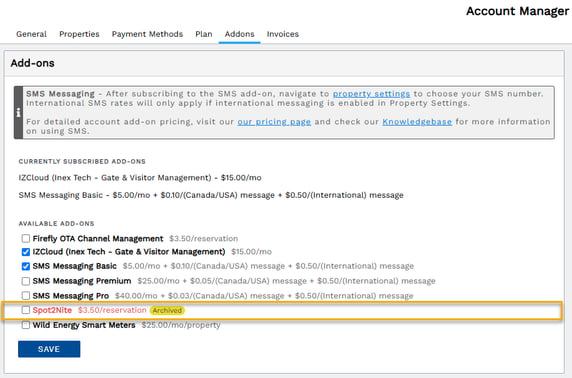
TIP: If you do not see Spot2Nite on the Addons tab in Firefly's Account Manager, reach out to Firefly Support at support@fireflyreservations.com.
-
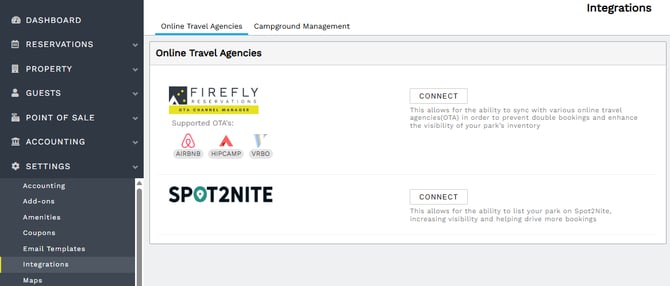
After enabling the add-on, go to Firefly's main menu and click the Settings dropdown to select Integrations. From there, you may continue the connection with Spot2Nite when ready.
Connect Firefly with S2N
Whether you have an existing Spot2Nite account or will be creating a new one, you will follow these steps after enabling your S2N add-on:
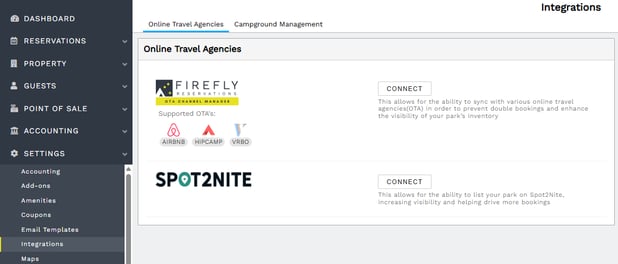
- On Firefly's main menu, click the Settings dropdown then select Integrations.
- Click Connect next to Spot2Nite.
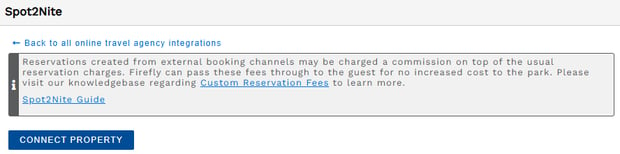
- On the Spot2Nite setup page, click the Connect Property button.
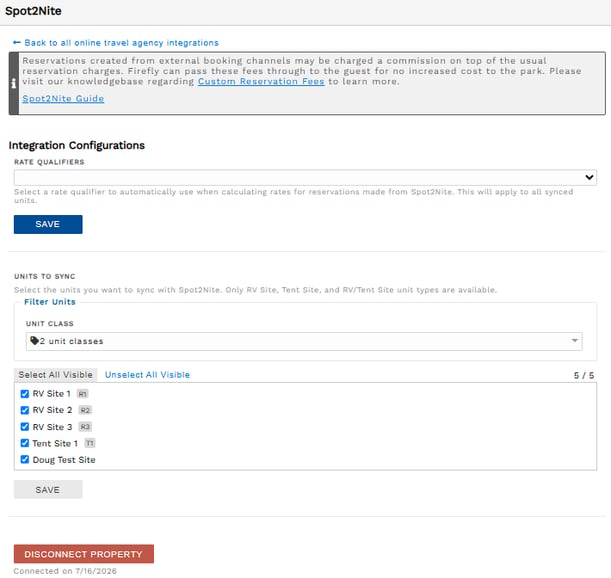
- Integration Configurations appear. You will also see the date and time your connection was established below the Disconnect Property button at the very bottom of the page. When you are ready, you may proceed with the connection process by syncing your units.
Sync Units
IMPORTANT: Only “RV Site”, “Tent Site”, and “RV/Tent Site” units are available to sync.
There is no current limit to the number of units that may be connected and synced in a S2N integration. Units available for syncing are listed in the order they appear on the Arrange Units page in Firefly. The syncing process between Firefly and Spot2Nite begins as soon as you complete these steps:
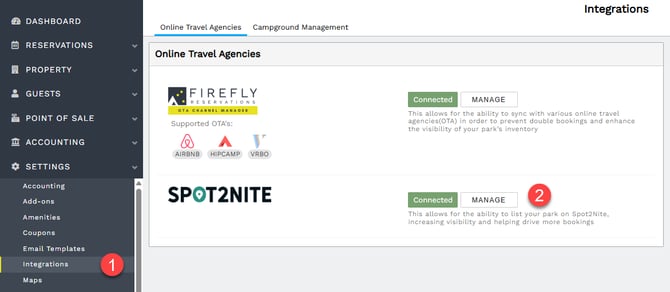
- On Firefly's main menu, go to the Settings dropdown and select Integrations.
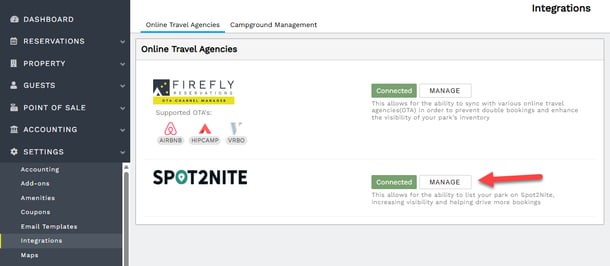
- On the Online Travel Agencies tab, click Manage for the Spot2Nite connection.
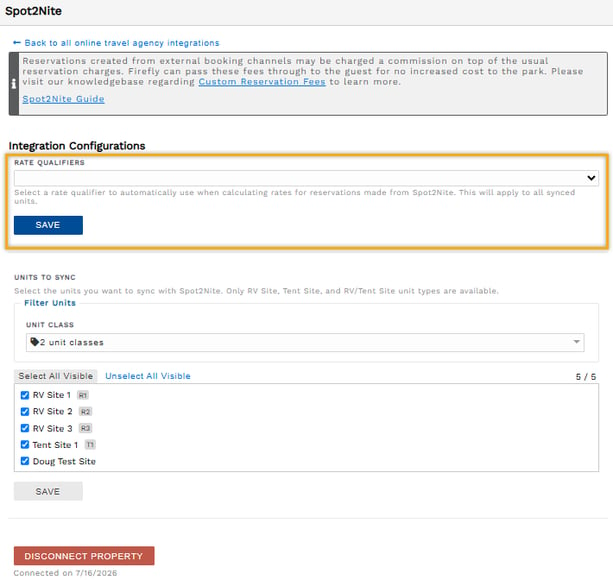
- On the Spot2Nite setup page, find the Units to Sync section.
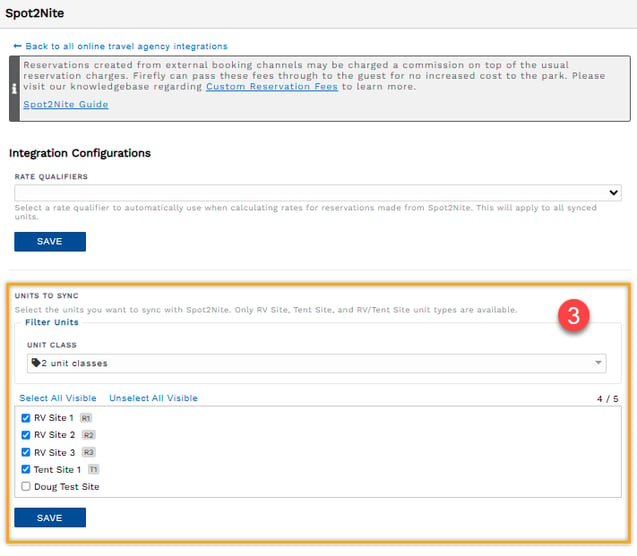
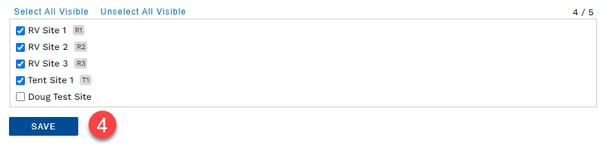
- Select units one at a time or use the one-click bulk selector to Select All Visible. When the units wish to sync are checked, click “Save”.
-
The syncing process begins immediately. In the lower right corner of your screen, you will see a confirmation message that reads "Channel settings request is processing...".
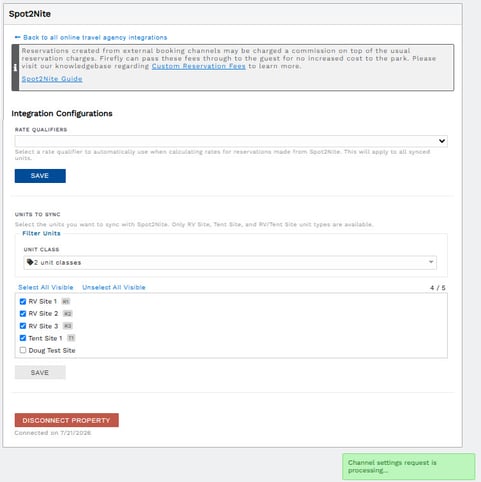 Automatic page refreshes occur every 10 seconds until all selected units have been synced. The processing confirmation disappears once the syncing process is finished. The syncing process is designed to complete quickly and efficiently. For example, it may take about 2 minutes to sync 200 units with a stable internet connection.
Create or Configure a S2N Account
When you have established your connection and synced units in Firefly, someone from Spot2Nite will reach out by phone or email as soon as possible. S2N may use your contact information on your property's website or the information on the General tab in Property Settings. You may confirm your contact information in Firefly using the hyperlink above or going to the main menu, clicking the Settings dropdown, then selecting Property.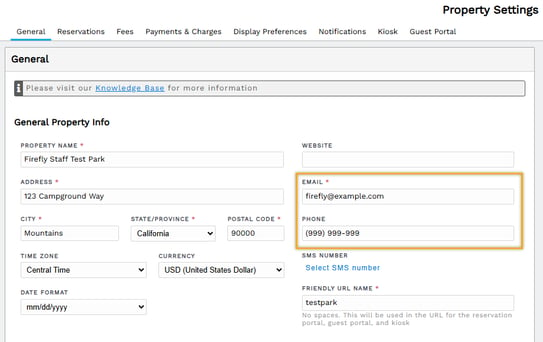
To create a new S2N account or configure your existing S2N account, the Spot2Nite team will provide a FAQ-style questionnaire about your units, rates, and reservation modification and cancellation policies. Once the questionnaire is completed, work will begin in the Spot2Nite system.
During the S2N setup process, even though units appear synced and ready to go in Firefly, you won’t be able to make reservations on these connected units until they are published on S2N.
The Spot2Nite team will let you know once your account setup is complete and your integrated units are ready for reservations.
NOTE: Please allow up to 7 days for Spot2Nite to create or enable your S2N account for the connection with Firefly. This may be longer during periods of high volume.
Set Up Your Rates
The Spot2Nite integration uses Firefly's rates at checkout for all reservations on S2N-integrated units, including bookings made through Firefly and bookings made through Spot2Nite.
CAUTION: You must ensure your rates in Spot2Nite match your rates in Firefly to avoid discrepancies between the reservation search and selection process and the final charges at checkout.
If you wish to pass your booking platform service fees through to your guests in an all-inclusive rate or your integrated units use required add-on rules in Firefly, you want to create a Rate Qualifier and special rate in Firefly. Required add-ons, such as cleaning or pet fees, only apply to reservations booked directly through Firefly and are not applied to reservations booked through integrations like S2N. For reservations booked through S2N, these required add-on fees can be built into a dedicated Spot2Nite special rate using a Rate Qualifier.
Follow these steps to set up a S2N rate qualifier and special rate:
- Create a S2N rate qualifier.
- Create special rates (daily, weekly, monthly if applicable) in Firefly to link with your S2N rate qualifier.
- On Firefly's main menu, click the Settings dropdown > select Integrations.
- On the Online Travel Agencies tab, next to the Spot2Nite connection, click Manage.
- Select your S2N rate qualifier from the dropdown then click Save.
Full-sync Reservations
Reservations are automatically imported and exported between Firefly and Spot2Nite at the time of a booking. Firefly also performs an automated daily check to ensure system calendars are accurately synced for the next 12 months.
Need Help? If you encounter any issues with your S2N integration setup, reach out to the Firefly Success Team by sending an email to success@fireflyreservations.com
View and Manage S2N-Integrated Reservations
Identify S2N Reservations on the Reservation Grid
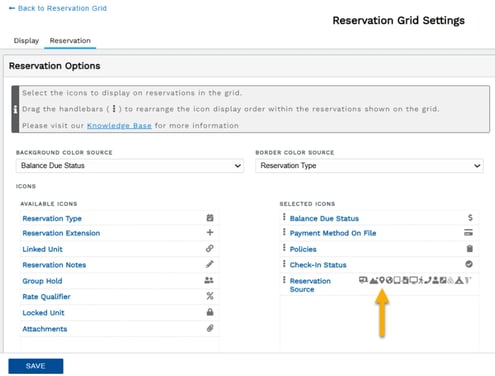
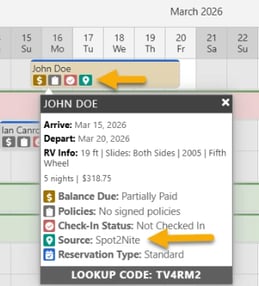
When using the reservation grid, you can identify Spot2Nite reservations at-a-glance by adjusting your grid settings. Once the icon is enabled, the S2N logo will appear on all reservations in integrated units. The icon is seen in yo r reservation blocks and in a reservation's hover-over details, as shown below.
Identify and Mange S2N Reservations on a Reservation's Details Page
NOTE: Reservations on integrated units must be managed on the initial booking platform. This includes cancellations as well as changes to stay dates, units, and occupancy.
Reservations booked through Firefly are exported to S2N and managed on Firefly.
Reservations booked on Spot2Nite and imported through an integration are managed on S2N. These reservations display a light gold banner at the top of each tab on the reservation's details page. The banner message reads: "This reservation was created through Spot2Nite, so all reservation updates must be managed through Spot2Nite."
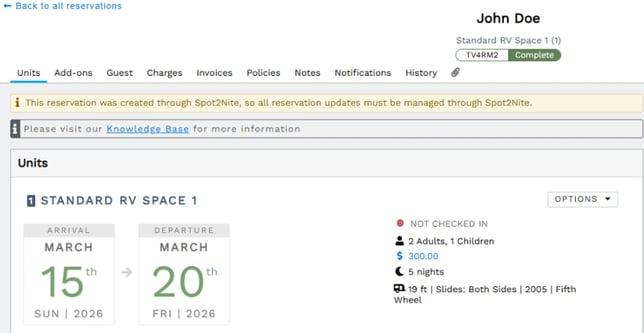
Financial activity on S2N-integrated units is different from integrations with Airbnb and VRBO. Payments and refunds for Spot2Nite integrated units are processed uniquely, with more options:
-
Reservations initiated through Firefly will save the payment method on file at the time of booking.
-
Reservations initiated through S2N will be processed through your Firefly integrated payment processor using a one-time digital card token.
-
Refunds may be processed through both Firefly and S2N.
If a reservation is booked in S2N and imported to Firefly, you may increase the charge price in Firefly and take additional payments in Firefly with a new payment method. The one-time digital card used at the time of booking may not be used for additional payments.
Guest Communications for S2N-Integrated Units
Reservations booked through Firefly on S2N-integrated units receive all automated emails you have enabled. Likewise, Spot2Nite sends their system's standard emails for reservations booked through S2N. You may also send manual emails to your S2N-integrated reservation guests since a guest's full contact information, including email address, is shared along with a reservation's details.
Enable External Bookings Only
You may choose to enable an "external bookings only" option on you S2N integrated units if you do not want reservations to be created in Firefly and only want to sync Firefly's reservation grid, reservation map, and reports with S2N.
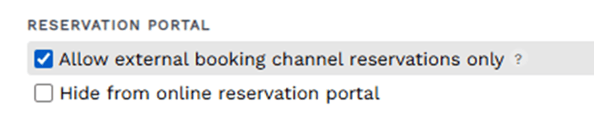
To enable external only bookings:
-
Go to Firefly's main menu and click the Settings dropdown, then select Units.
-
On the Units page, click a unit to open it.
-
On the unit's General tab, check the option box for “Allow external booking channel reservations only” then click Save.
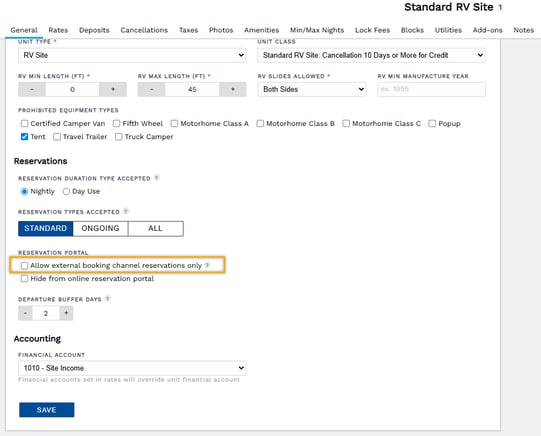
- You may enable the setting on multiple units by using the Import/Export tool.
This option allows for the unit to only be booked via Spot2Nite or other external booking platforms you have connected like Airbnb, VRBO, or Hipcamp. The unit will not be available for booking by staff on Firefly's front desk or by guests on your Firefly reservation portal.
If a reservation is attempted anywhere through Firefly for a unit with this option enabled, an error will appear stating: “Unit only allows bookings from external booking channels”. Here is an example of the error message when a booking is attempted from the reservation grid: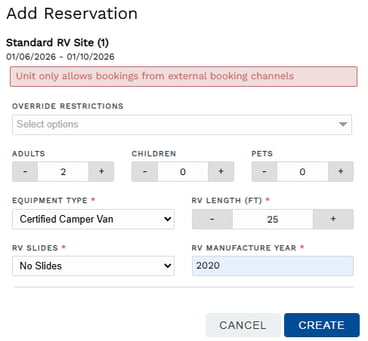
Reservation Conflicts
Conflicts are very unlikely, but may occur if a block or reservation is made in Firefly at the same time a reservation is made on Spot2Nite. The bottom right corner of Firefly's Dashboard displays a bold red box with information about the conflict.
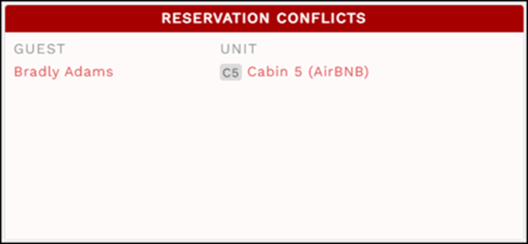
You may click on the conflict to be taken to the block's setup or the reservation's details page in Firefly. An example of a reservation with a conflict is shared below. To resolve a conflict, you will make any required adjustments then click the “Conflict has been resolved” button.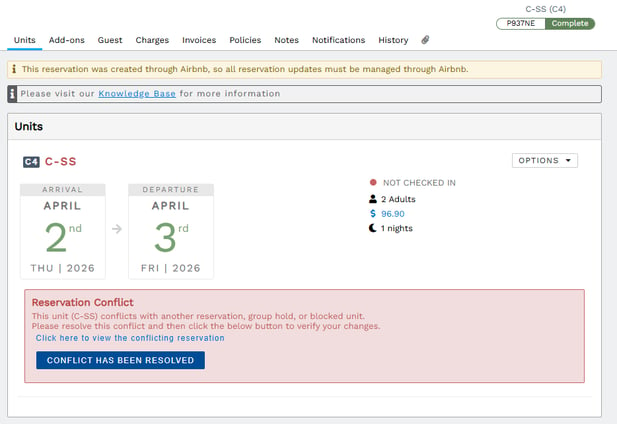
Disconnect Firefly from S2N
You may disconnect the integration at any time.
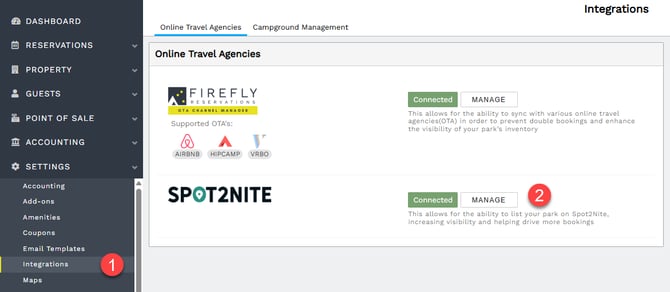
- On Firefly's main menu, go to the Settings dropdown to select Integrations.
- On the Online Travel Agencies tab, click Manage for the Spot2Nite connection.
-
Scroll to the bottom of the Spot2Nite setup page, click the red Disconnect Property button.
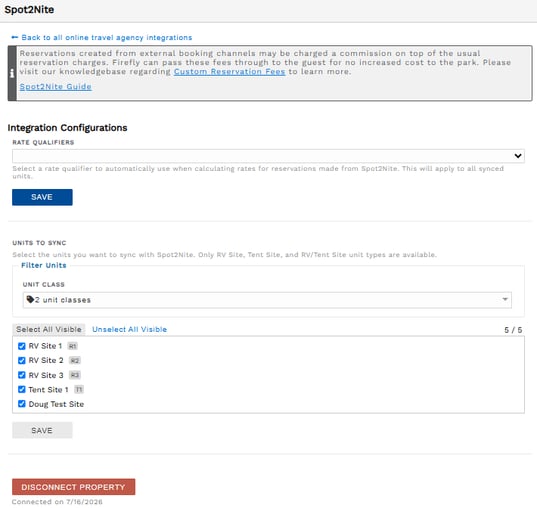
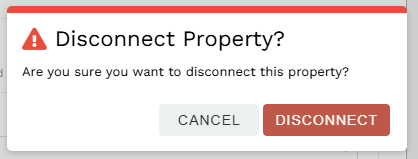
- A confirmation pop-up will immediately appear. Click Cancel to stop the disconnection or Disconnect to complete it.
Firefly Integrations
Firefly offers an ever-growing range of integrations to help you optimize your revenue opportunities while streamlining property management. You can also connect your Firefly account to other popular OTAs, including Airbnb, Vrbo, and Hipcamp, and property management tools like InexTech IZ Cloud and Wild Energy.
To learn more about Firefly's full integration lineup, see Firefly Software Integrations.
Need help? If you have questions or encounter issues, reach out to our Support team:
👉support@fireflyreservations.com
Want more training or a setup walkthrough? Connect with Firefly's Success Team: