![Firefly-logo-high-res.png]](https://fireflyreservations.com/hs-fs/hubfs/Firefly-logo-high-res.png?height=50&name=Firefly-logo-high-res.png)
Updated: February 18, 2026
Link to Firefly Feature: Settings > Property > Payments & Charges tab (or click here)
NOTE: Stripe and Payroc (BridgePay/i3) are grandfathered processors.
You may use these links to go straight to a processor's dedicated article.



Quick Links:
Which payment processor is right for you?
Overview
Firefly offers you the ability to elevate your property's online reservation experience with integrated payment processing by connecting your Firefly property to your merchant account at one of our payment processing partners. Through this connection, your staff and guests are able to initiate payments within Firefly for new and existing reservations.
This means guests are able to make reservations or payments when it's convenient for them, even at 3:00am while you are peacefully sleeping. It also means your property sees increased operational efficiency and productivity with fewer office visits, fewer phone calls, and fewer trips to the bank.
For a quick overview of the integration process, enjoy this brief, two-minute video:
Which Payment Processor is Right For You?
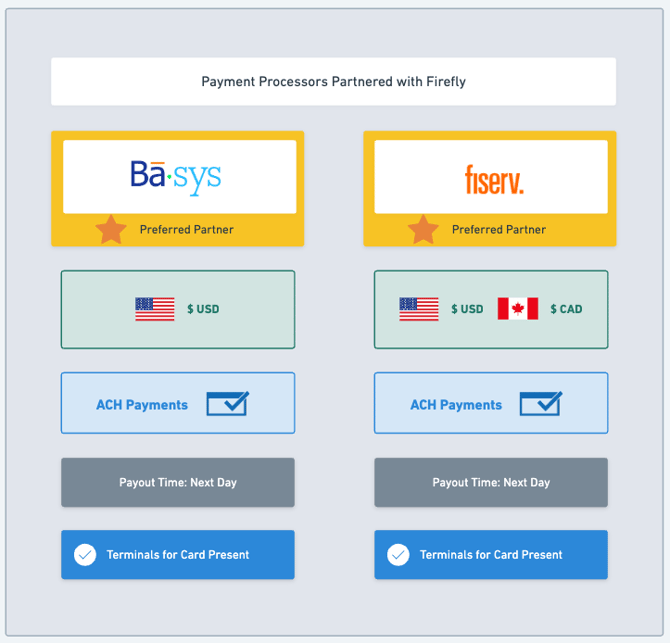
Payment Processor Options
For new customers, Firefly offers two payment processing integrations: BASYS and Fiserv.
What is the difference between the two preferred payment processing partners?
- Fiserv integration supports CAD and USD. Our customers get excellent rates, a quick business approval process, fast funding, and 24/7 support.
- BASYS integration support USD. They offer competitive rates and quick setups. They have excellent personal support and account management.
If you already have an active account with BASYS or Fiserv and are ready to connect within Firefly, go to Settings > Property > Payments & Charges tab (here).
Fiserv Setup Instructions
For more about Fiserv payment processing in Firefly, visit: Firefly and Fiserv's partnership page.
Set Up a Fiserv Account
-
From Firefly's main menu, go to Settings > Property > Payments & Charges tab.
-
You will be taken to the Fiserv partner page to fill out a contact form.
-
Once a form is submitted, the Fiserv team will contact you.

Connect Your Fiserv Account
When your merchant account is active and ready for use, the Fiserv team will send you an email with your processor credentials. This is your merchant account ID (MID) and API username as well as instructions to use these to complete the setup of your merchant portal. The merchant portal password you create is your API password. These are the essential information required to connect your Fiserv account in Firefly.
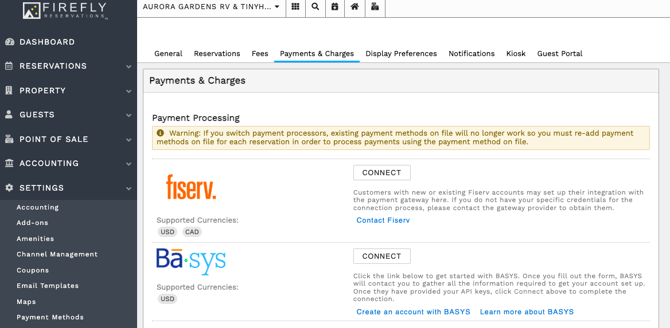
Once this information and merchant portal setup is complete you may connect your Fiserv account to Firefly. On the main menu:
-
Go to Settings > Property.
-
Select the Payments & Charges tab.
-
Click the Connect button next to Fiserv.
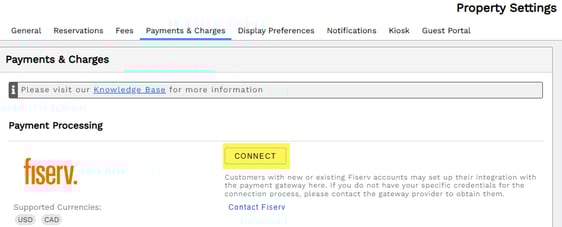
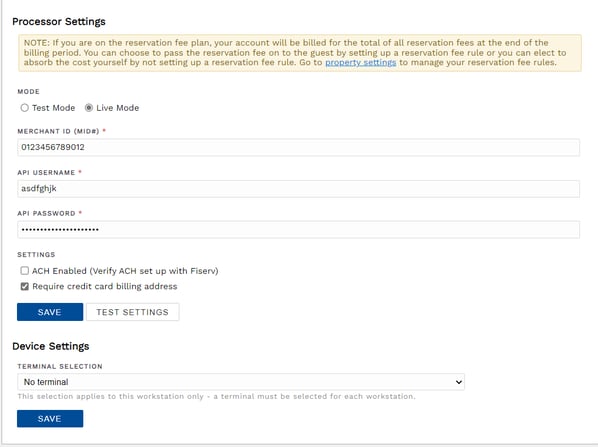
You will then see the following setup screen, and complete the steps below:
-
Ensure Live Mode is selected.
-
Enter your Merchant ID, API Username, and API password.
-
Enable ACH only if Fiserv has confirmed its setup on your merchant account.
-
We recommend enabling "Require credit card billing address" as this gives you better fraud protection as well as potentially lower processing rates.
-
Click Test Settings.
-
Click Save.
-
Your integrated payment processing setup is now complete! You are ready to process payments through Firefly using Fiserv.
Having trouble with your credentials?
-
try both copy/paste and manual entry
-
ensure there are no spaces before or after your credential entries
- ensure there are no typos and your credentials are entered exactly as received
- confirm your credentials and your account's setup by reaching out to the contact you received the credentials from or Fiserv Support
Fiserv Support
For support needs, visit their support page: Fiserv Customer Support Options
You may also check out the Knowledge Base article dedicated to Fiserv: Process Payments with Fiserv.
BASYS Setup Instructions
BASYS is a partner that will become like trusted family, providing dedicated account management and caring customer support. They offer competitive rates and quick setups.
Follow this guide to get started processing payments directly in Firefly using BASYS.
Set up a BASYS Account
-
From Firefly's main menu, go to Settings > Property. Then, choose the Payments & Charges tab.
-
Click Create an account with BASYS or Learn more about BASYS.
-
You will be taken to the BASYS partner page to fill out a contact form.
-
Once a form is submitted, the BASYS team will contact you.

Connect Your BASYS Account
When your merchant account is active and ready for use, the BASYS team will send you an email with your processor credentials. This is the essential information to connect your BASYS account in Firefly.
Once your processor credentials are received, go to Settings > Property. Select the Payments & Charges tab. Click the Connect button next to BASYS.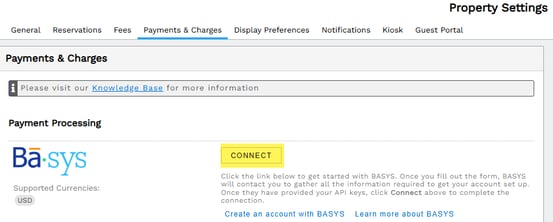
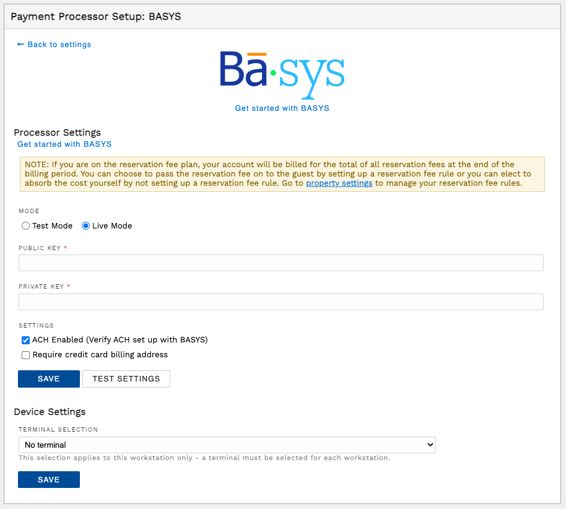
You will then see the following setup screen, and complete the steps below:
-
Ensure Live Mode is selected.
-
Enter your BASYS credentials for the Public Key and Private Key.
-
Enable ACH only if BASYS has confirmed its setup on your merchant account.
-
We recommend enabling "Require credit card billing address" as this gives you better fraud protection as well as potentially lower processing rates.
-
Click Test Settings.
-
Click Save.
-
Your integrated payment processing setup is now complete! You are ready to process payments through Firefly using BASYS.
Having trouble with your credentials?
- try both copy/paste and manual entry
- ensure there are no spaces before or after your credential entries
- ensure there are no typos and your credentials are entered exactly as received
- confirm your credentials and your account's setup by reaching out to the contact you received the credentials from or BASYS Support
BASYS Support
For support needs, visit their support page BASYS Customer Support
You may also check out the Knowledge Base article dedicated to BASYS: Process Payments with BASYS.
Switching Payment Processors
An approved and active merchant account is required to connect with a payment processor. If you already have a merchant account with the new processor and you've received your account's credentials, you may go directly to the Payments & Charges tab mentioned above.
For further guidance on creating a new merchant account with one of our preferred processors, refer to the appropriate section above:
CAUTION: When considering a change in payment processors, payment methods on file with your existing processor will not transfer to the new processor. All payment methods on file must be removed and added again once connected with the new processor.
Also, payments taken through the previous processor may not be refunded through the new processor. These refunds may only be completed by cash, check, or reservation credit. You may have refund options directly through your previous processor but will have to connect with them to confirm any available options.
🙋♀️ Still need help? Email: support@fireflyreservations.com and one of our technicians can help answer your questions.
💭 We would love to know if this article was helpful in addressing your issue. If you could answer the question below it will notify our team. Thank you!